FRISO tutorials: organize, share and make creative work
Short screen recordings of FRISO, with voice and subtitles: organize content and projects, store and share files with clients, save references, make posts and motion, and connect your own AI.
FRISOYour home for creativity.Assista em português
Getting started
See the tools → 0:27Your free account and the FRISO toolsWhat you can do without an account, why the Workspace asks for one, and the Tools page with every part of FRISO.
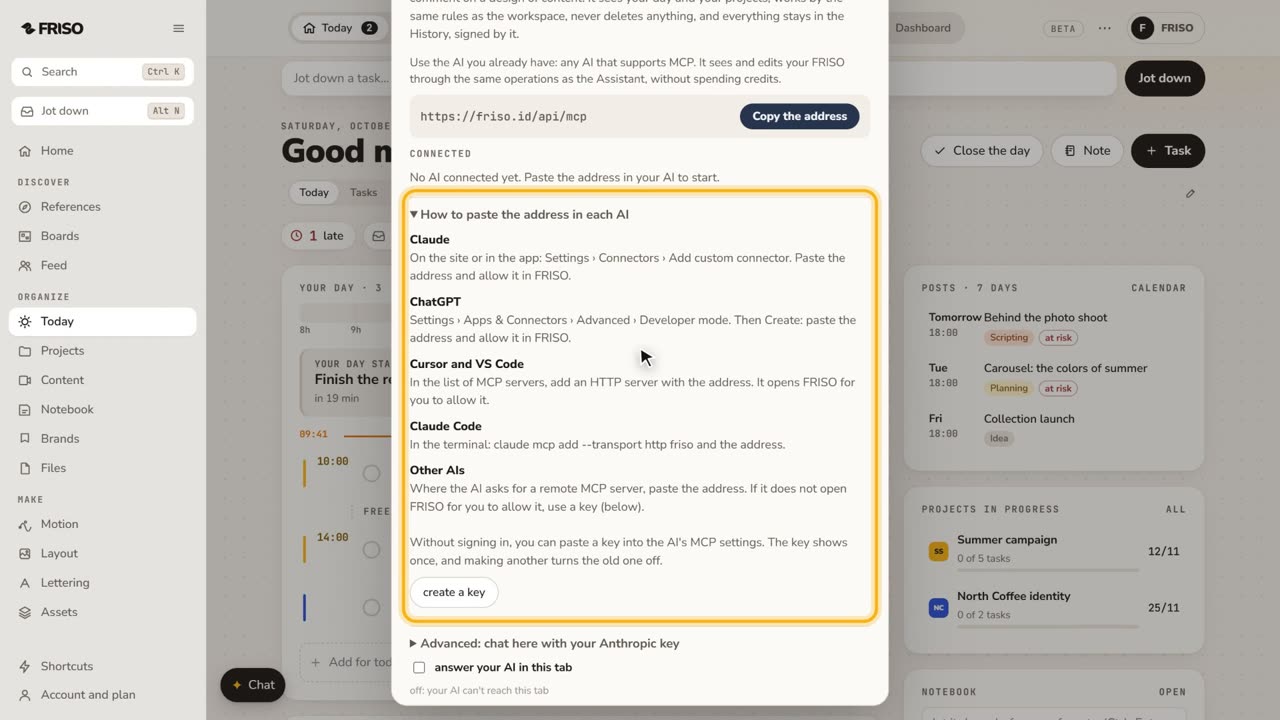 1:07How to connect Claude or ChatGPT to your projectsConnect your own AI to FRISO through MCP and ask it to organize tasks and projects. It never deletes, and every change is signed.
References
Open References →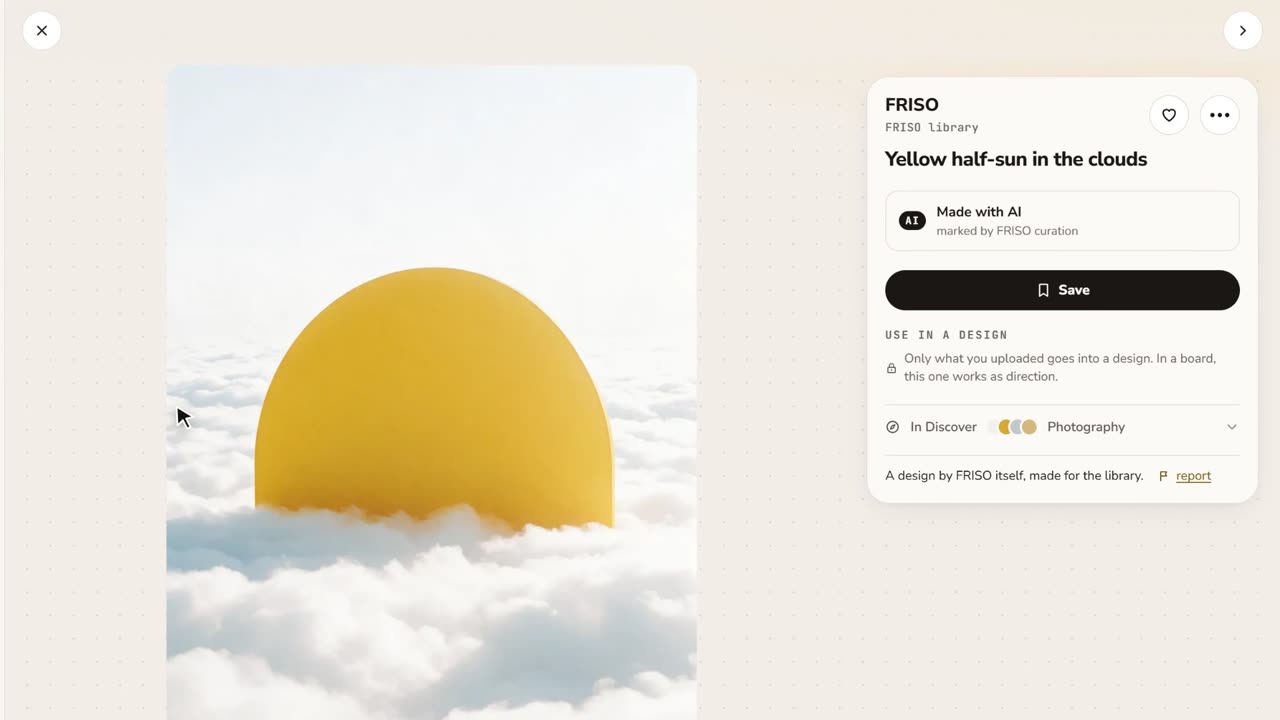 0:48References and boardsDiscover images with credit, search by color or subject, save with one click and keep them on as many boards as you like.
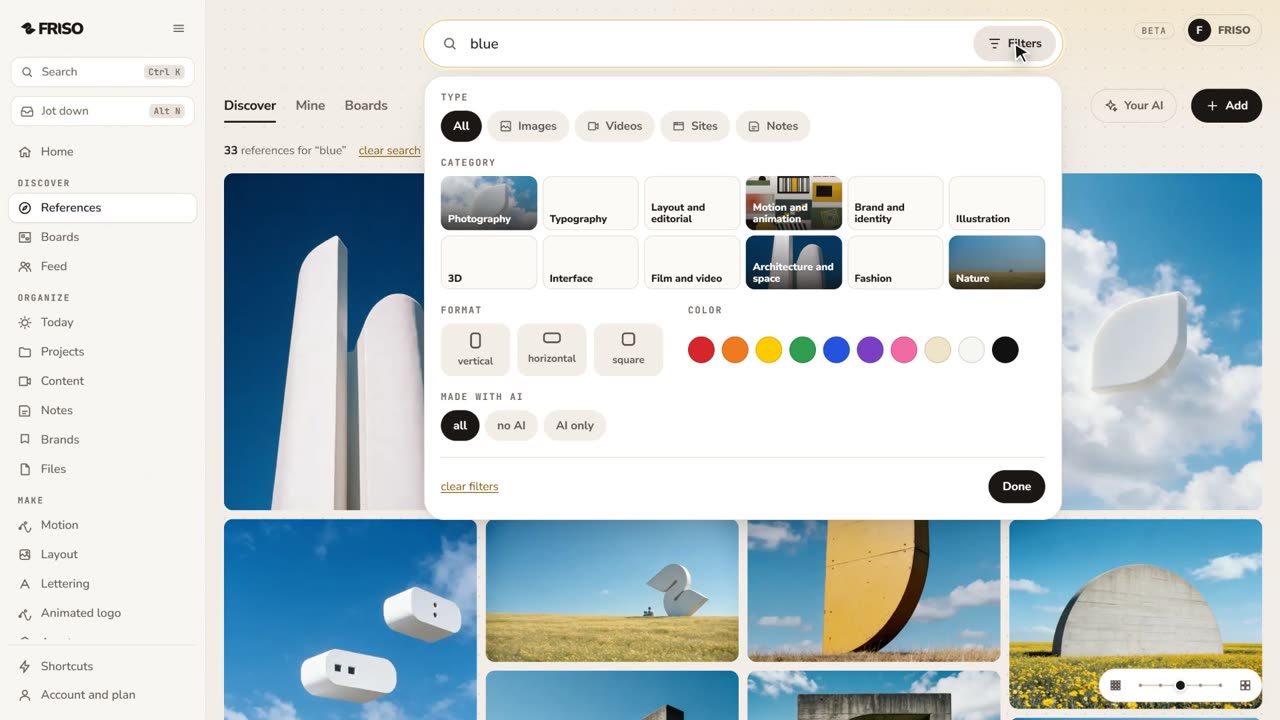 1:28How to find design references and keep them organizedReferences lost in tabs and screenshots? Search by subject or color, see the credit, find similar ones and save them to a board.
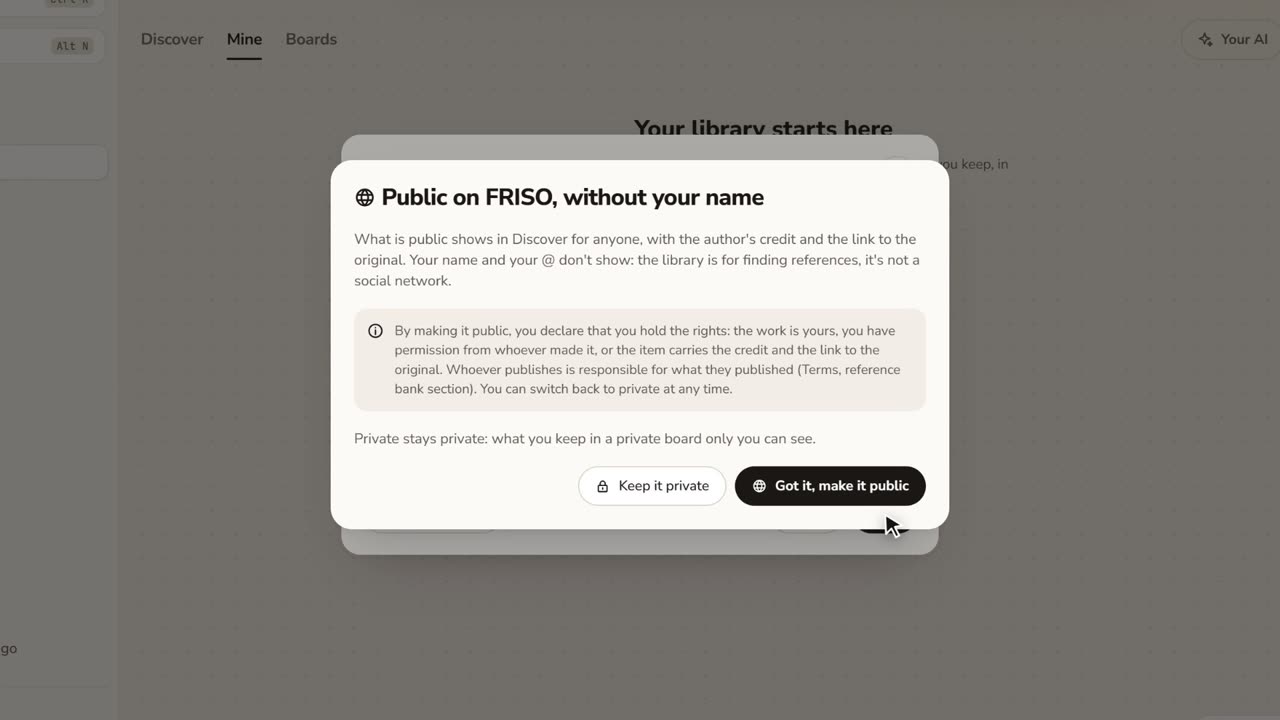 1:17How to save images from the internet with the creditStop saving loose screenshots. Paste a link or drop your files, choose who sees it, and keep the original author credit.
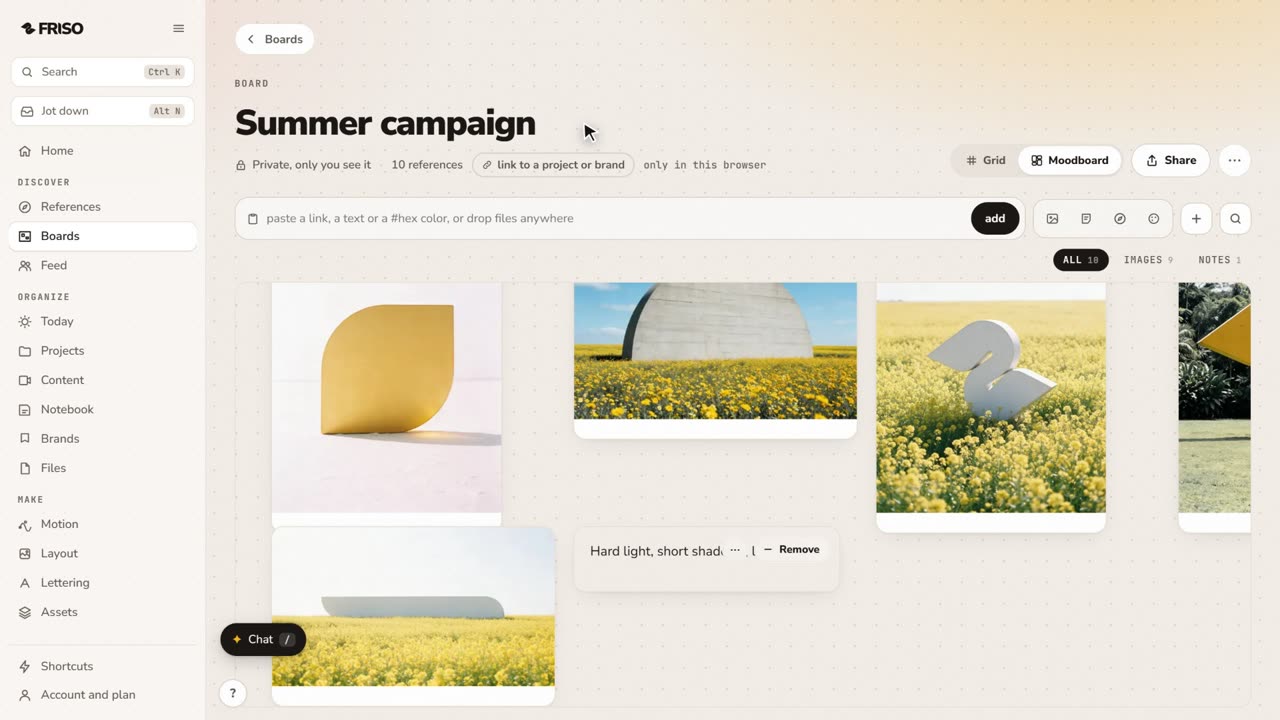 1:02How to make a moodboard and link it to a projectOne board, two views: a grid to browse and a moodboard to think. Pull the palette from your images and link the board to the job.
Moodboard
Open Moodboard →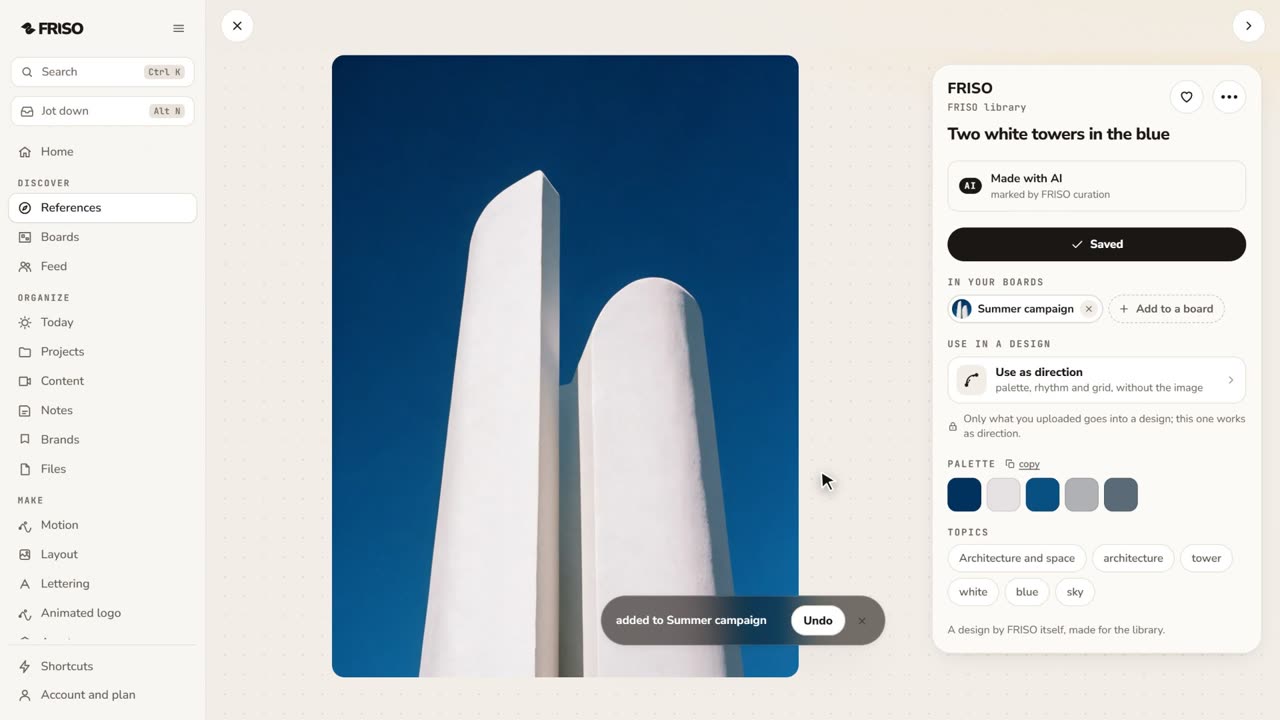
Organize
Open Today →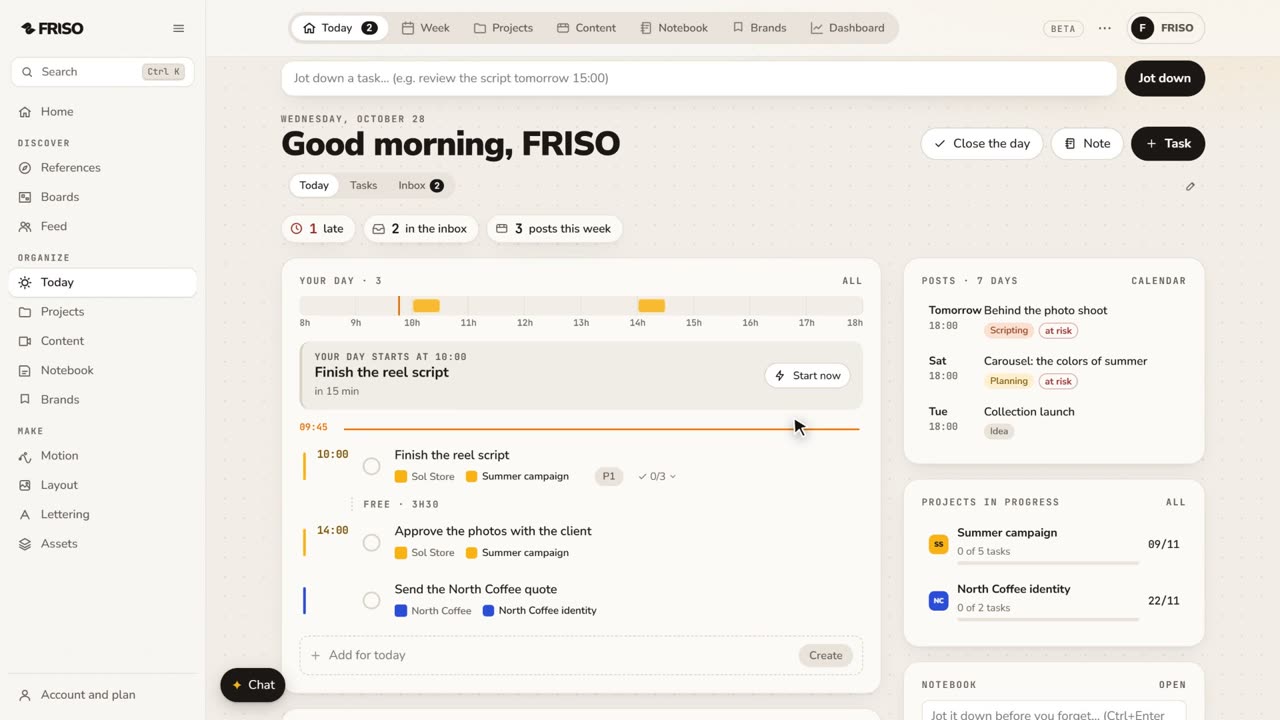 0:56Organize your work: day, week, projects and contentToday, Week, Projects, Content, Notes and Brands, one by one. Write tasks the way you say them, and let your own AI help organize.
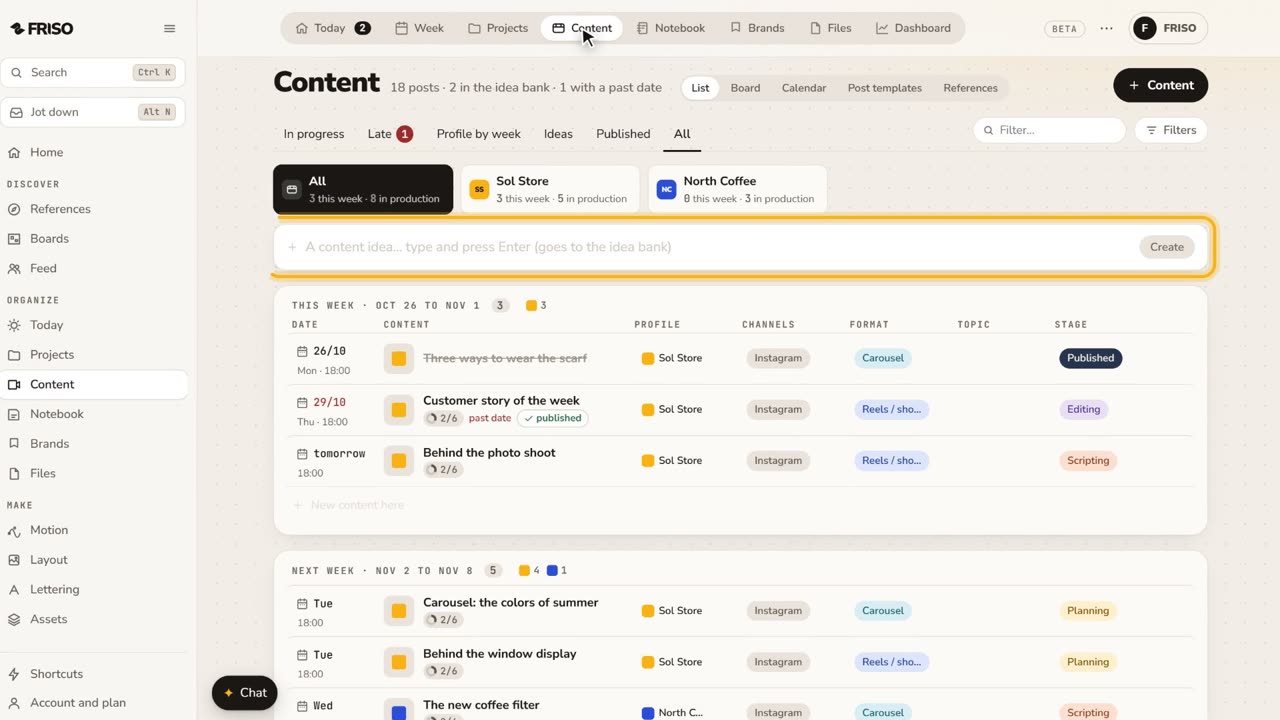 1:22How to organize social media content from idea to postIdeas get lost across notes and chats. Keep each post on one sheet, with its stage, date, caption and result, until it is published.
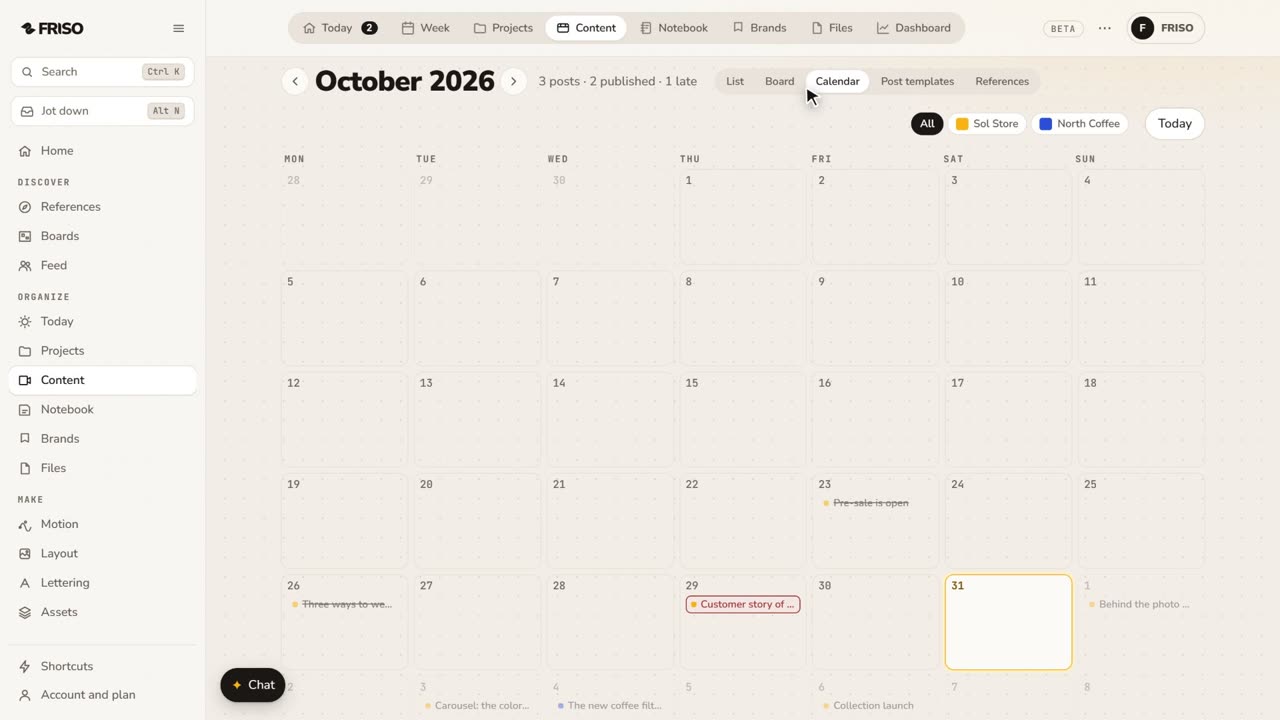 1:24How to build a monthly social media content calendarA month of posts is hard to see in a list. Plan it on a calendar: drag posts between days, filter by profile and repeat what comes back.
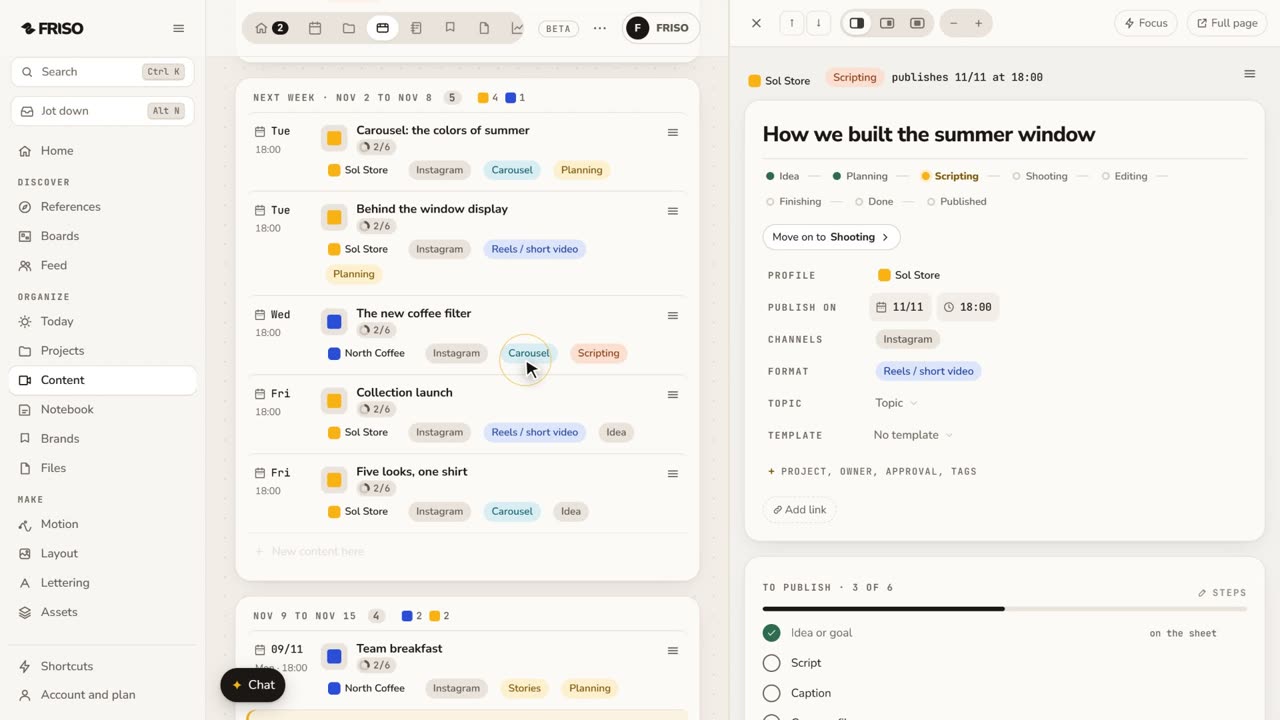 1:34How to write a script and storyboard for short videosA blank page stops the video before it starts. Write the script, use a method if you get stuck, then turn the scenes into a storyboard.
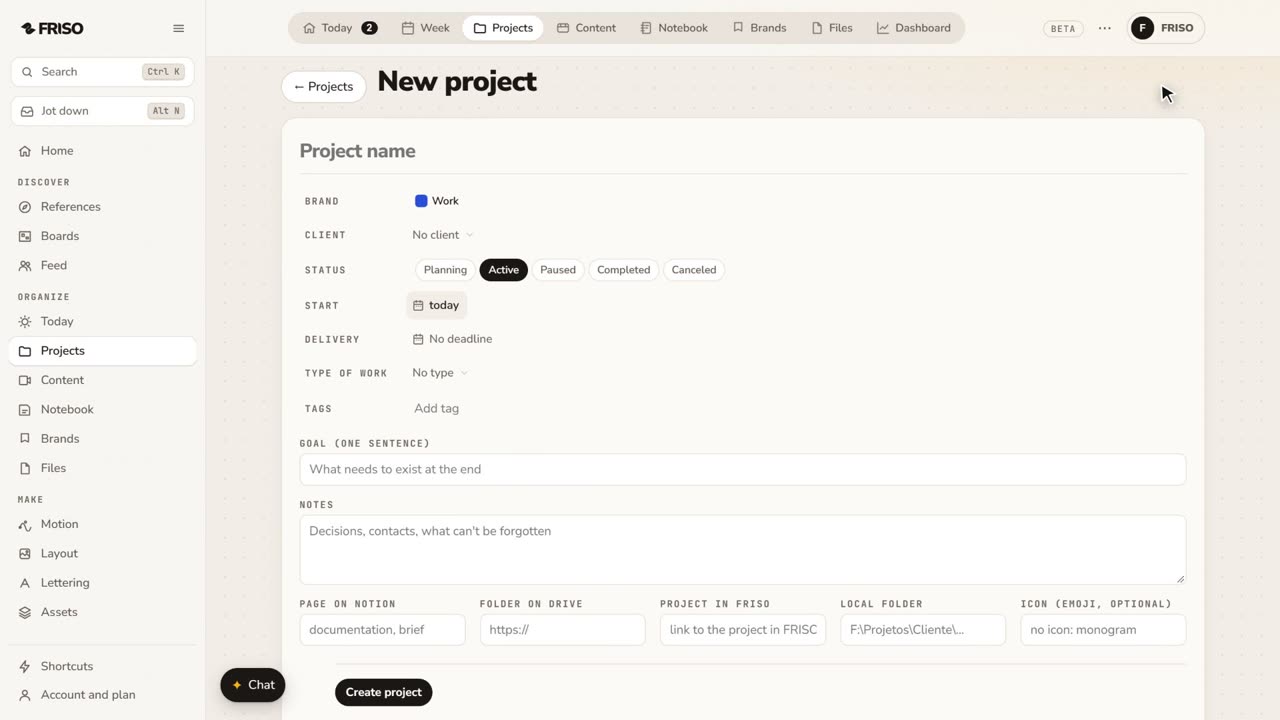 1:29How to manage a creative project from brief to deliveryA job scatters across email, chat and folders. Keep it in one project: brief, tasks, posts, references, documents and a timeline.
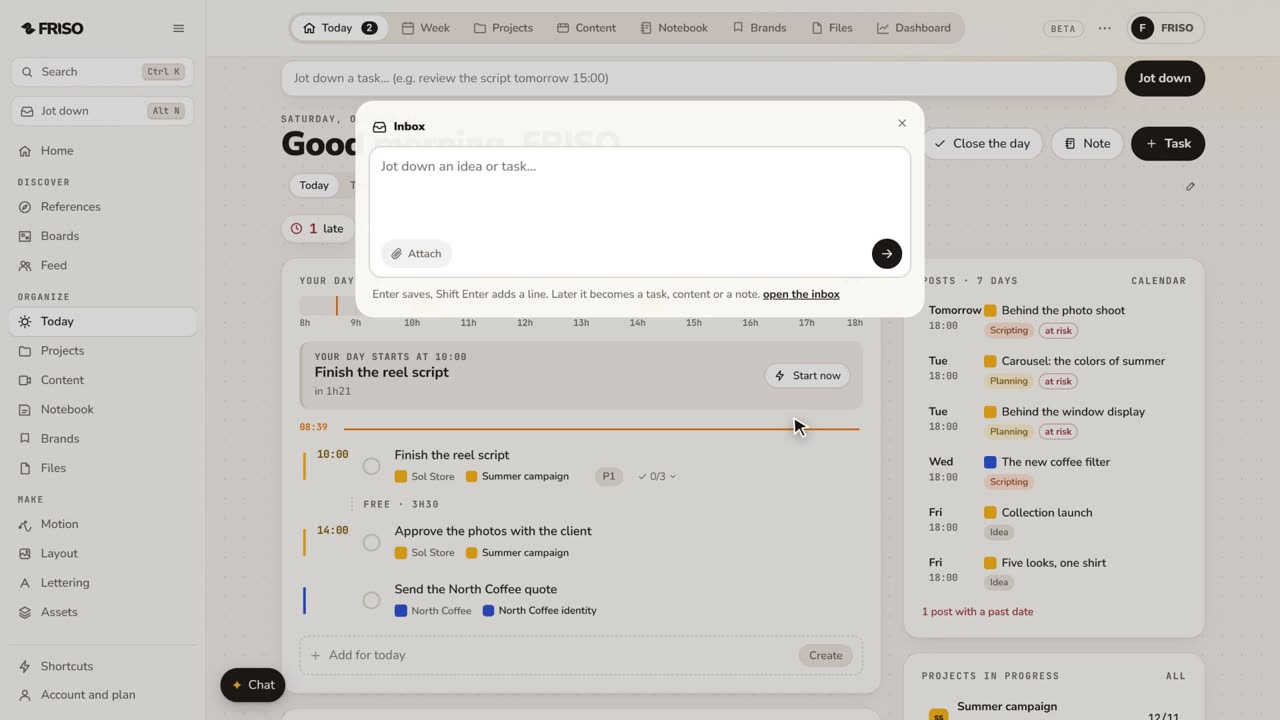 1:27How to capture ideas fast and keep them organizedGood ideas show up at bad times. Jot them down with Alt N from any screen, sort them later into tasks, content or notes.
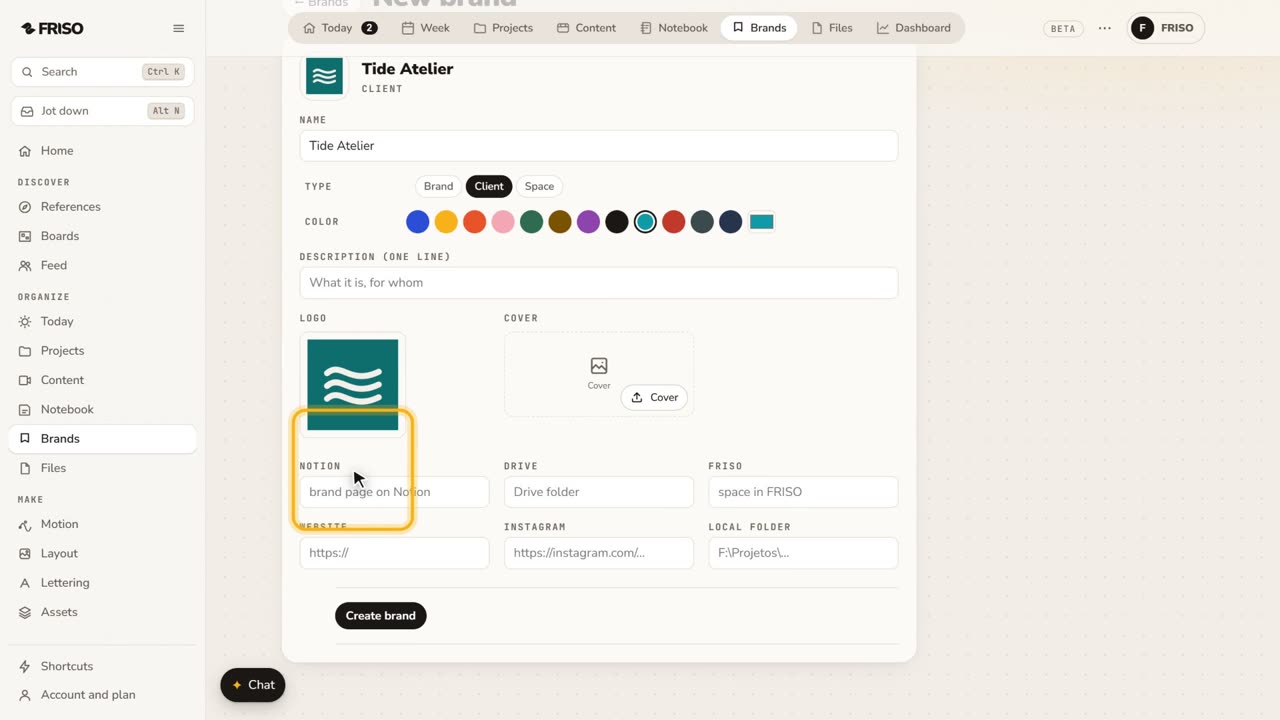 1:15How to keep each client brand kit in one placeColors, logo and fonts for each client in one place, used by Layout, Motion and Lettering, with everything filtered by brand.
Files
Open Files →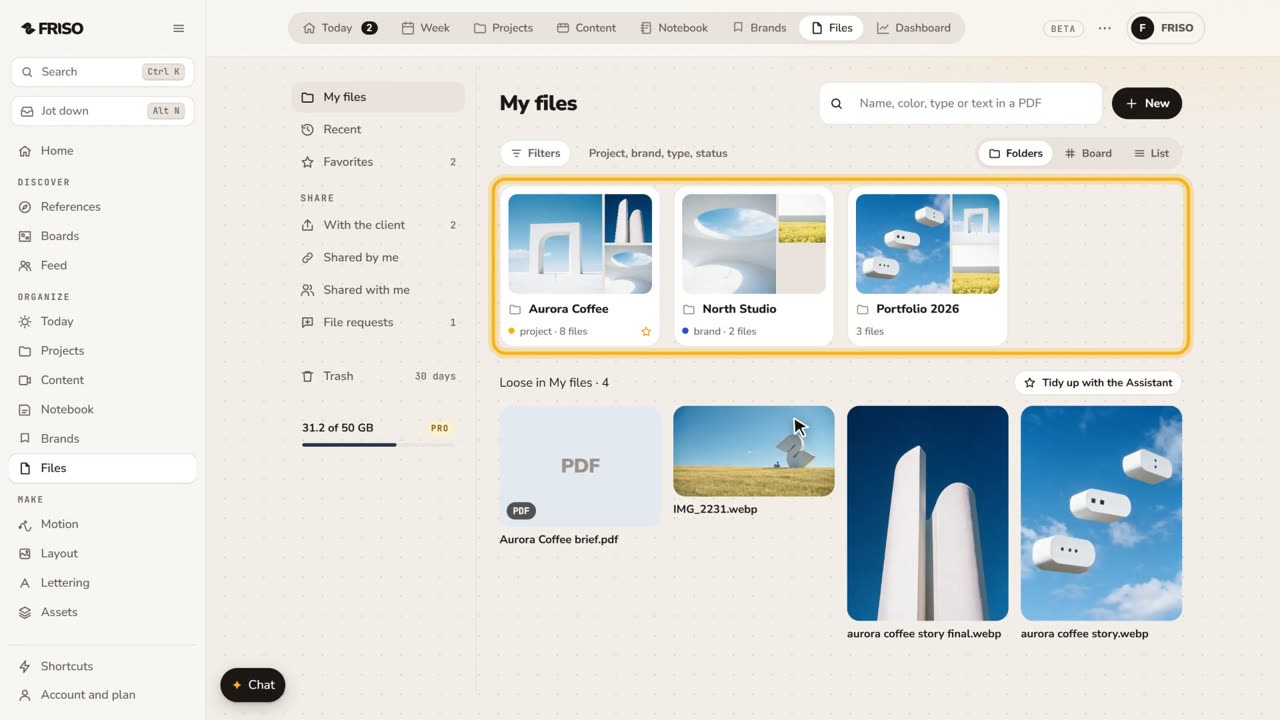 1:31How to store and organize creative files in one placeYour work scattered across drives and chats? FRISO Files is your cloud: folders linked to projects, search and private folders.
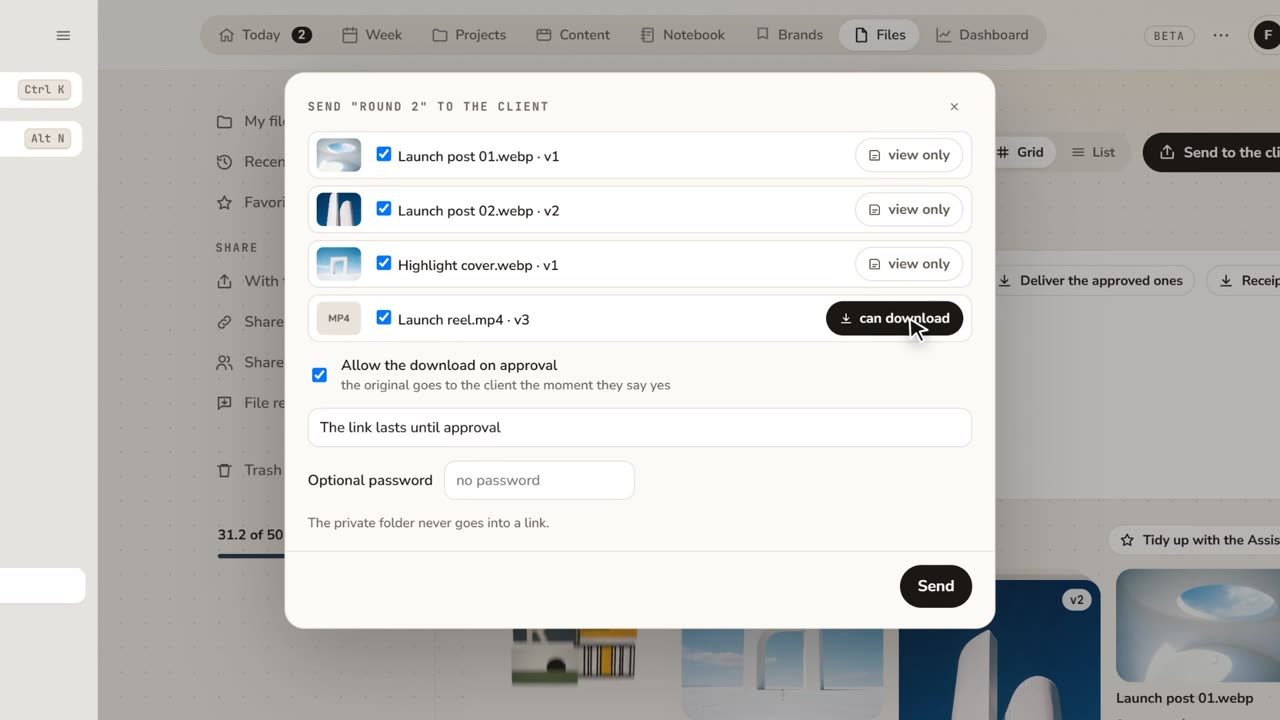 1:48How to share files with clients for approvalFeedback lost in email threads? Send a folder as a link: the client comments on the exact spot and approves, with no account.
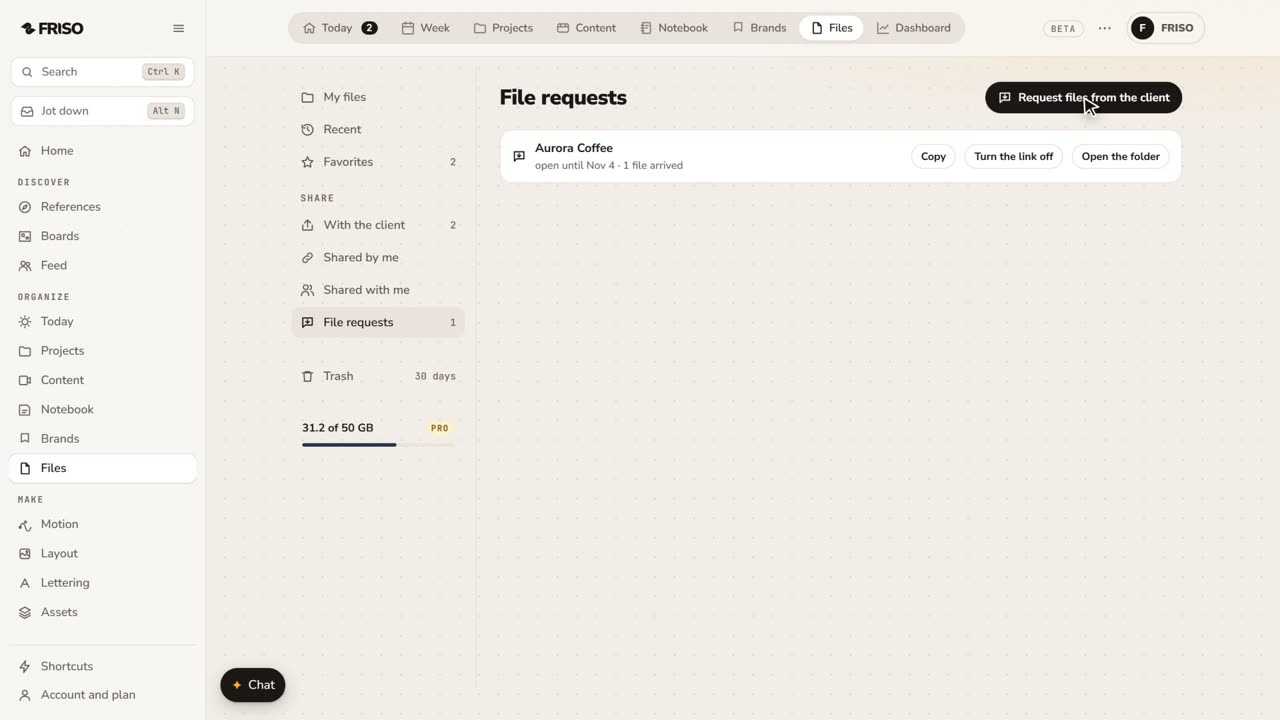 1:07How to request files from a client with one linkClient files scattered across WhatsApp and email? Send one link: they upload with no account, and it all lands in your folder.
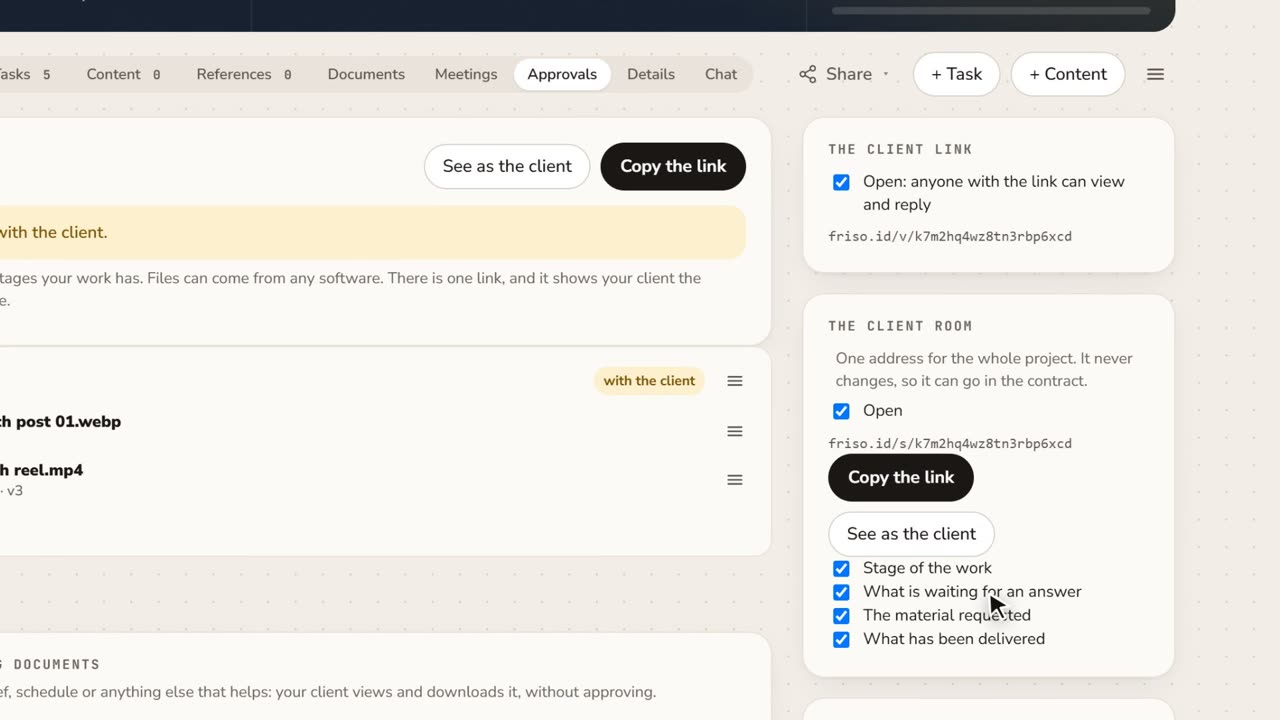 1:15A client portal for each project, with approval receiptsClient asking where things stand? Give them one address for the whole project, and keep a receipt of every approval as a PDF.
Motion
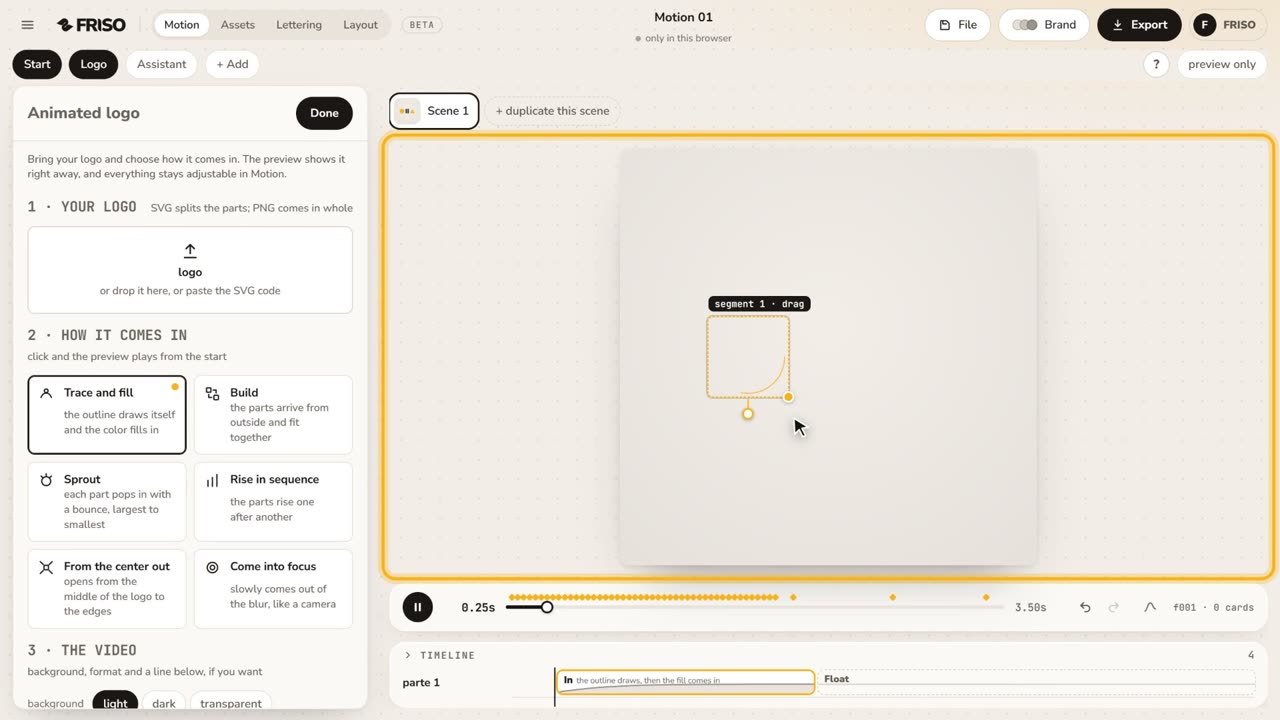
Open Motion →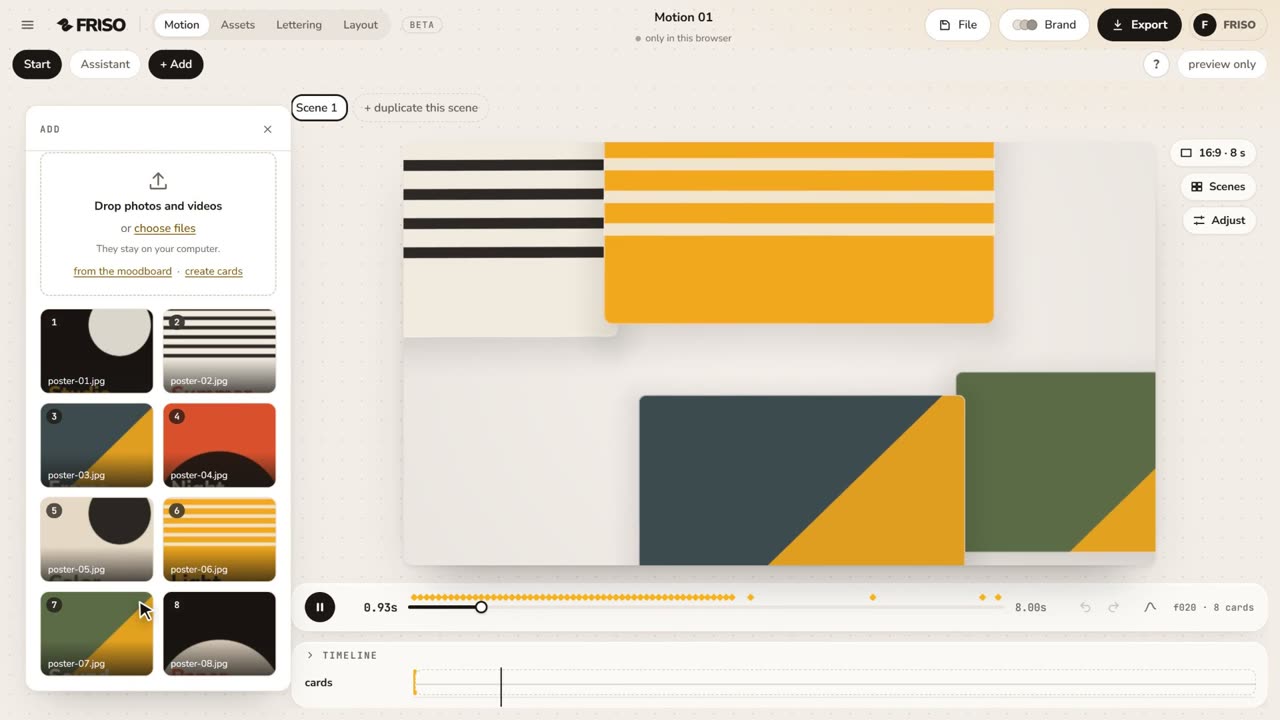 1:02Your first scene in one minutePhotos in, a ready-made scene, the right format for social media and the export menu. The whole path, from zero to a video.
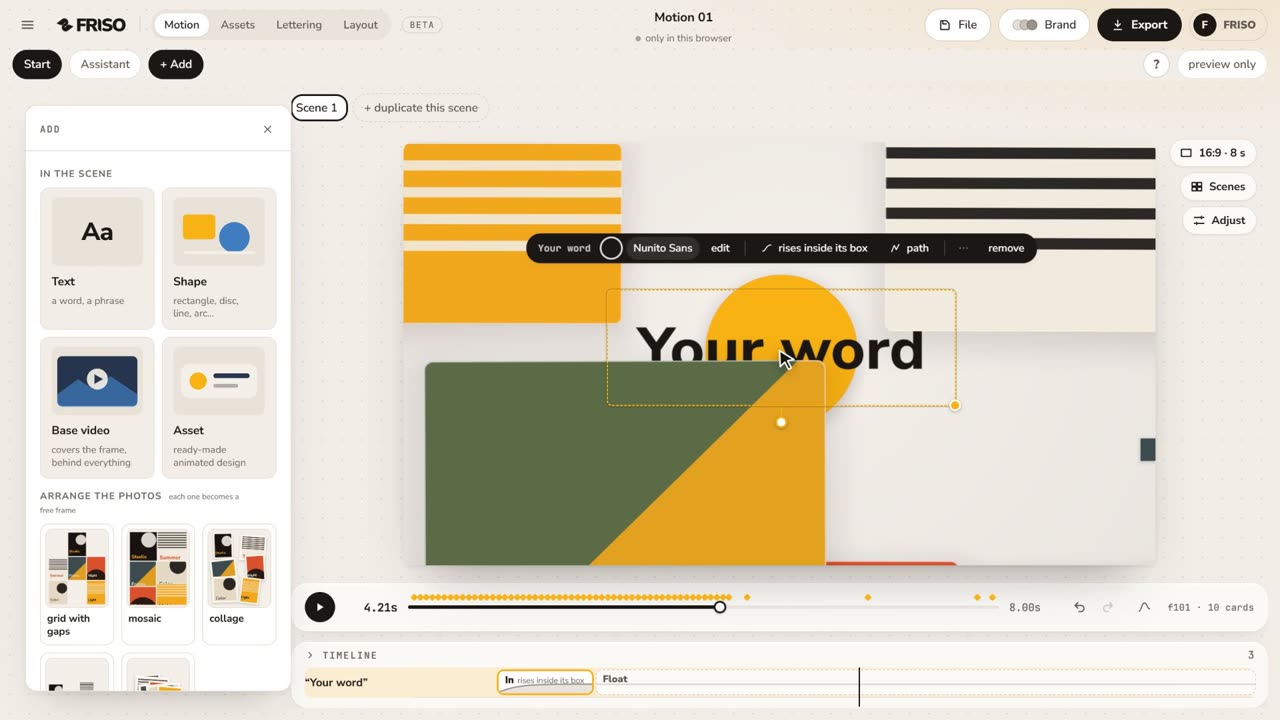 1:15The new Motion in one minuteThe scene gets the whole screen, each piece has its own bar and three blocks on the timeline, and groups, gradients and "draw it for me" are one request away. No voice, with captions.
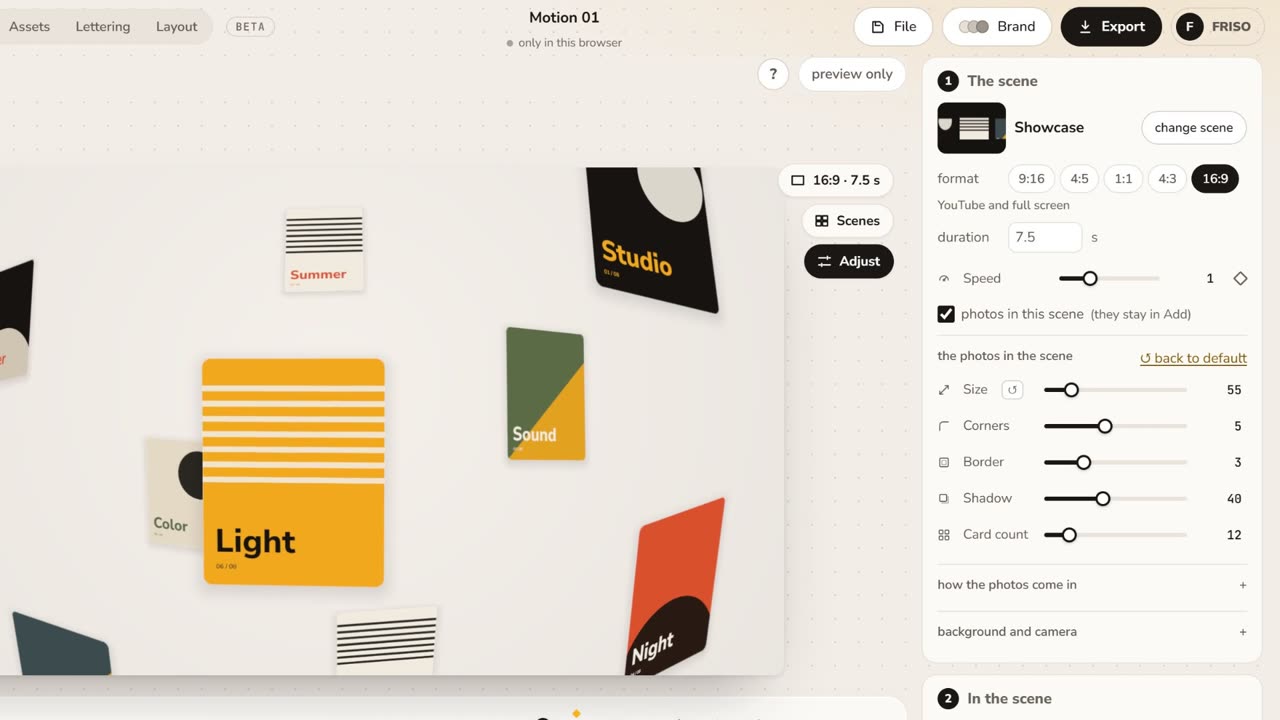 1:05Make it yours: layout, entrance and settingsChange the layout and how the images come in, then tune size, aperture, the Lens, corners, border and background.
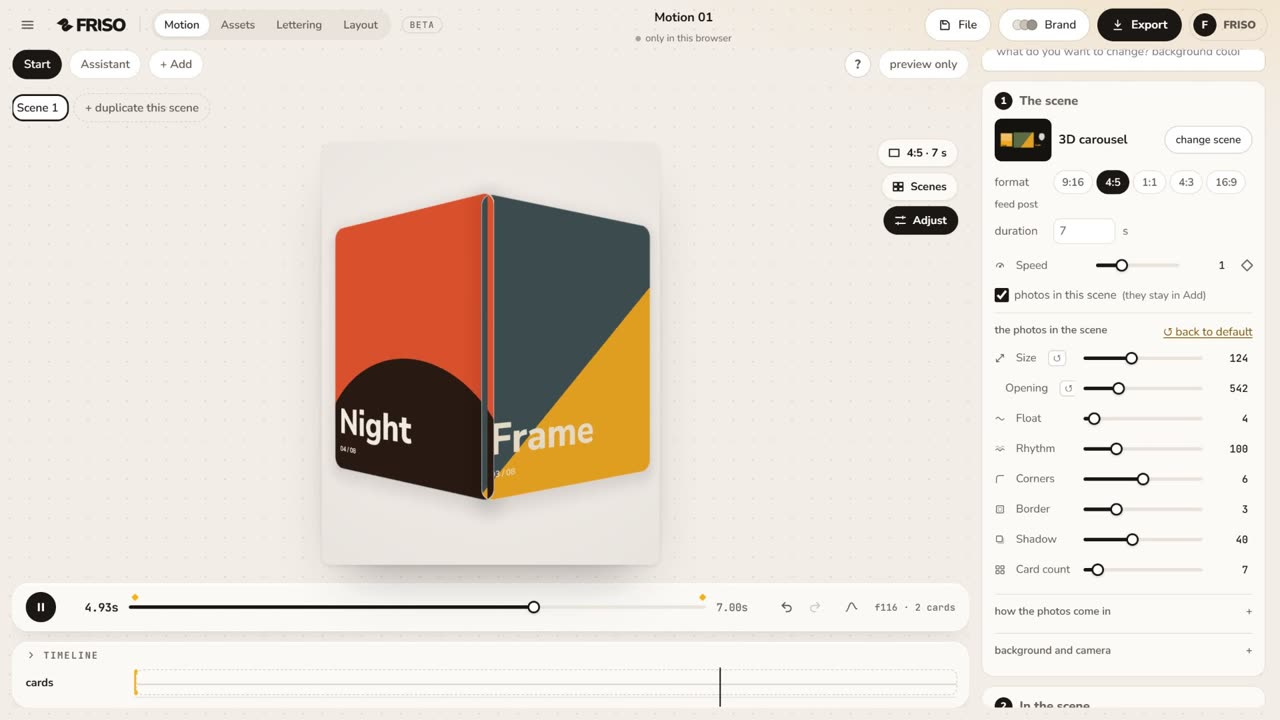 1:01The simple controls, one by oneSize, Aperture, Face camera, Lens, Pass-through, Float, Corners, Border, Shadow and Card count: what each one does, live.
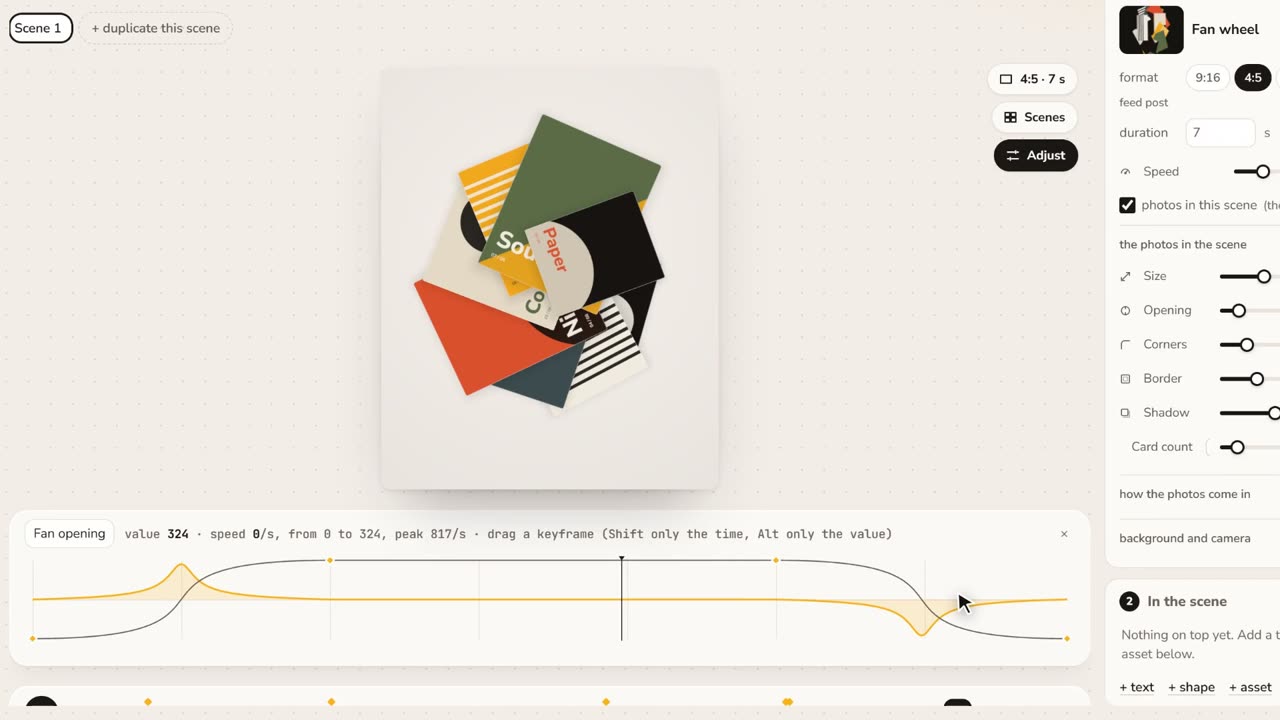 0:58Rhythm, curves and After EffectsThe Rhythm presets, the timing curve, the speed graph, advanced controls with keyframes and the .jsx that opens in After Effects with the same motion.
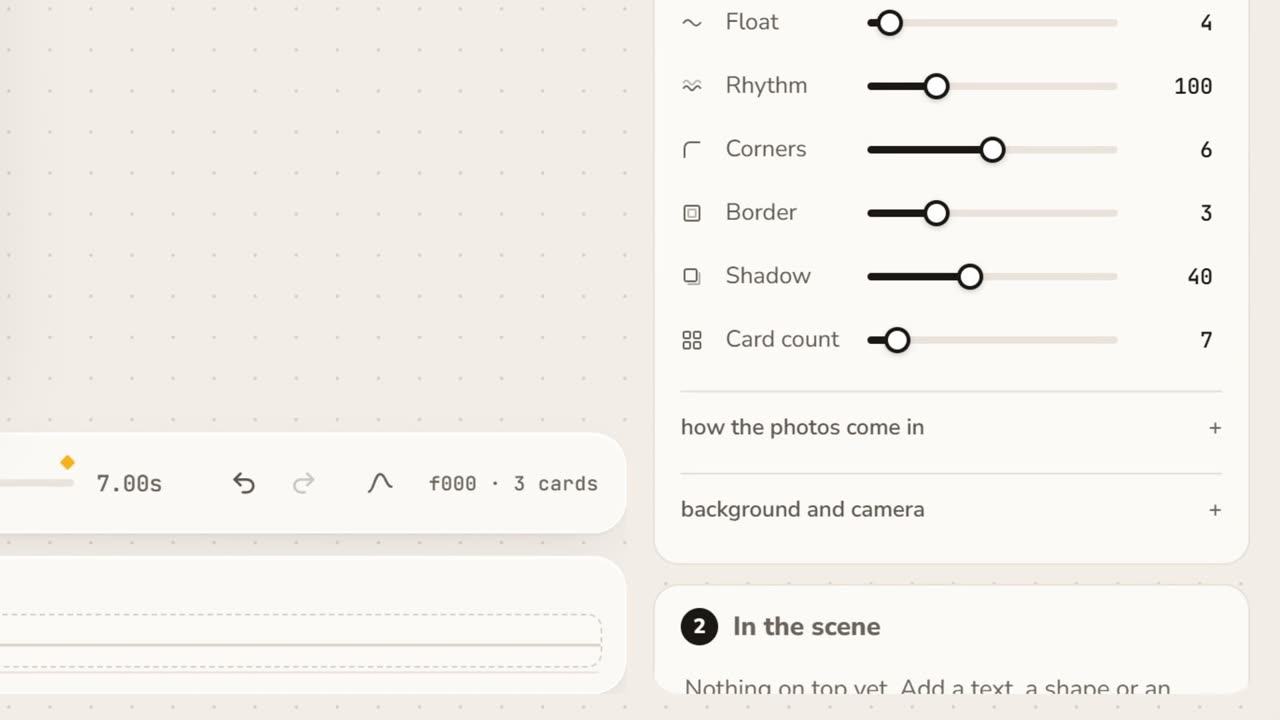 1:10Advanced controls and keyframesEvery parameter of the scene in cards, and your first keyframes: pause, set a value, press the diamond, play. They go to After Effects as real keyframes.
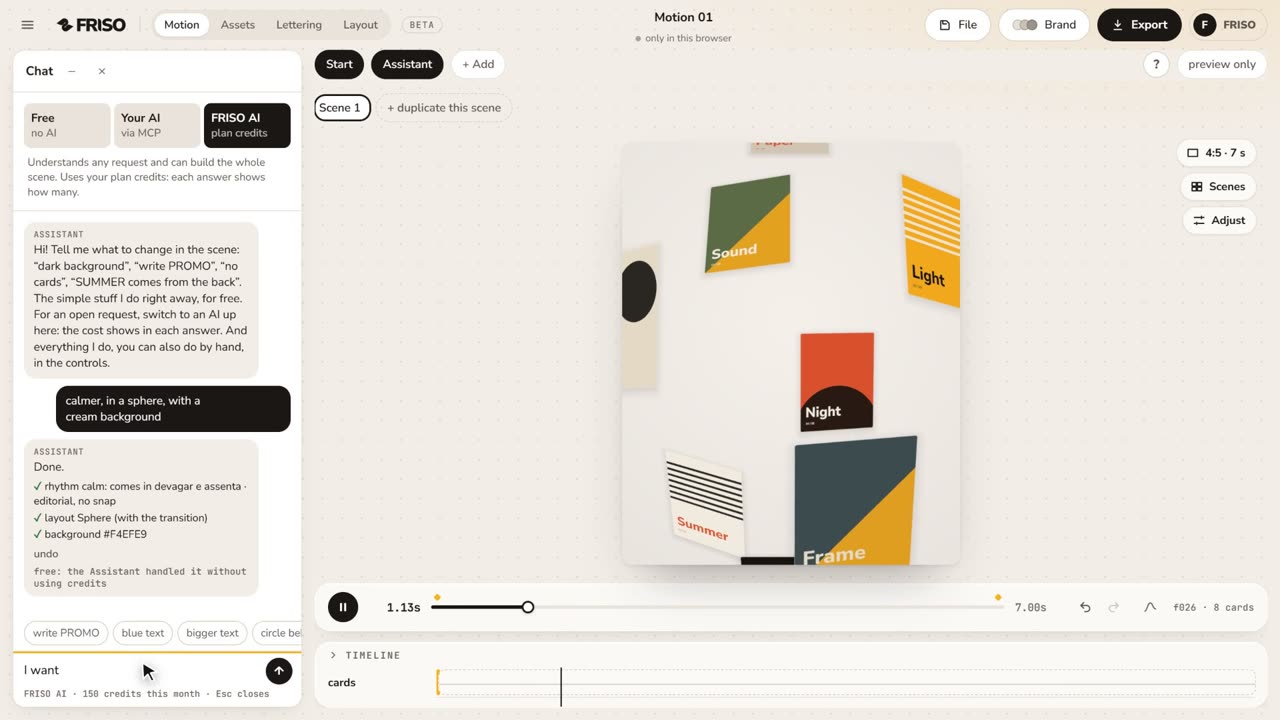 1:05The Assistant: ask for the scene in your own wordsAsk for the scene in your own words: FRISO AI builds it with what Motion has and tells you what it did, and one undo reverses the whole answer. You can also connect your own AI, with no credits. Then the advanced controls with keyframes, and the JSX for After Effects.
Layout
Open Layout →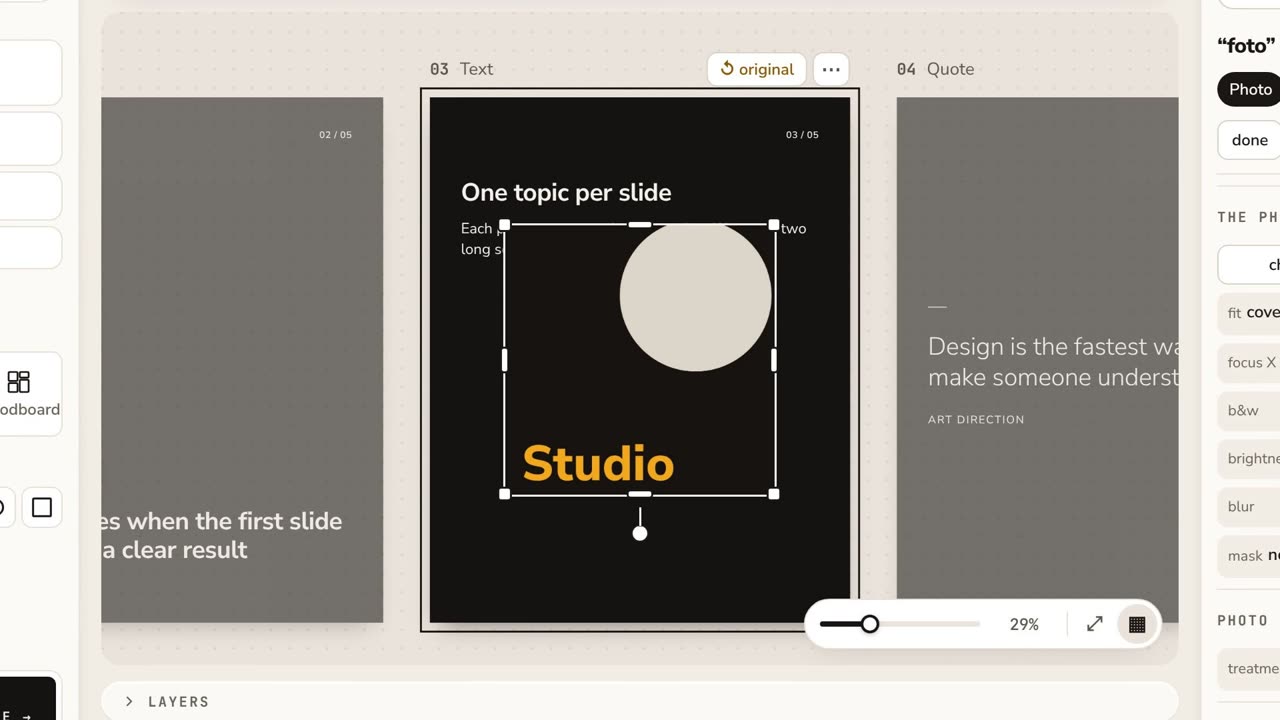 0:53Layout: your first carouselThe cards on a table, one bar for what you pick, the carousel styles, Copy style, See on Instagram and the export to PNG, PDF, video or Photoshop.
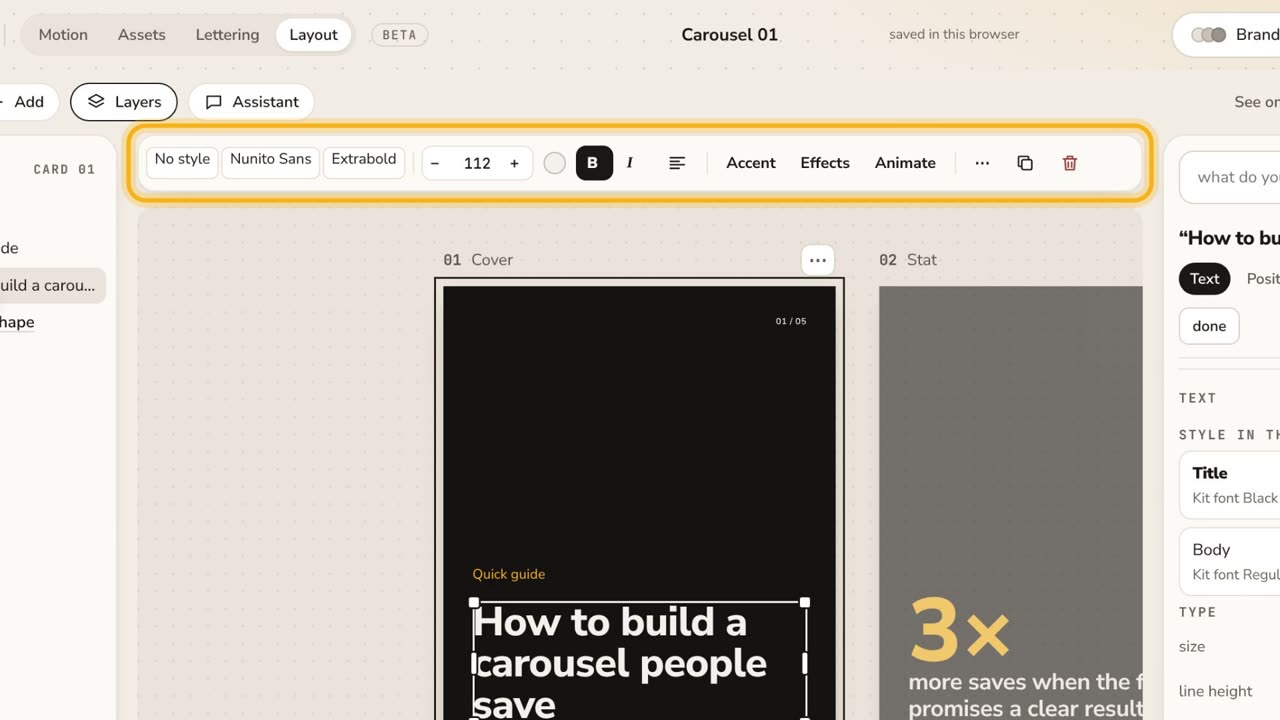 1:32The new Layout in one minuteThe cards on a table, one bar for what you pick, templates in your kit, Google Fonts in the font menu, "draw it for me" and See on Instagram. No voice, with captions.
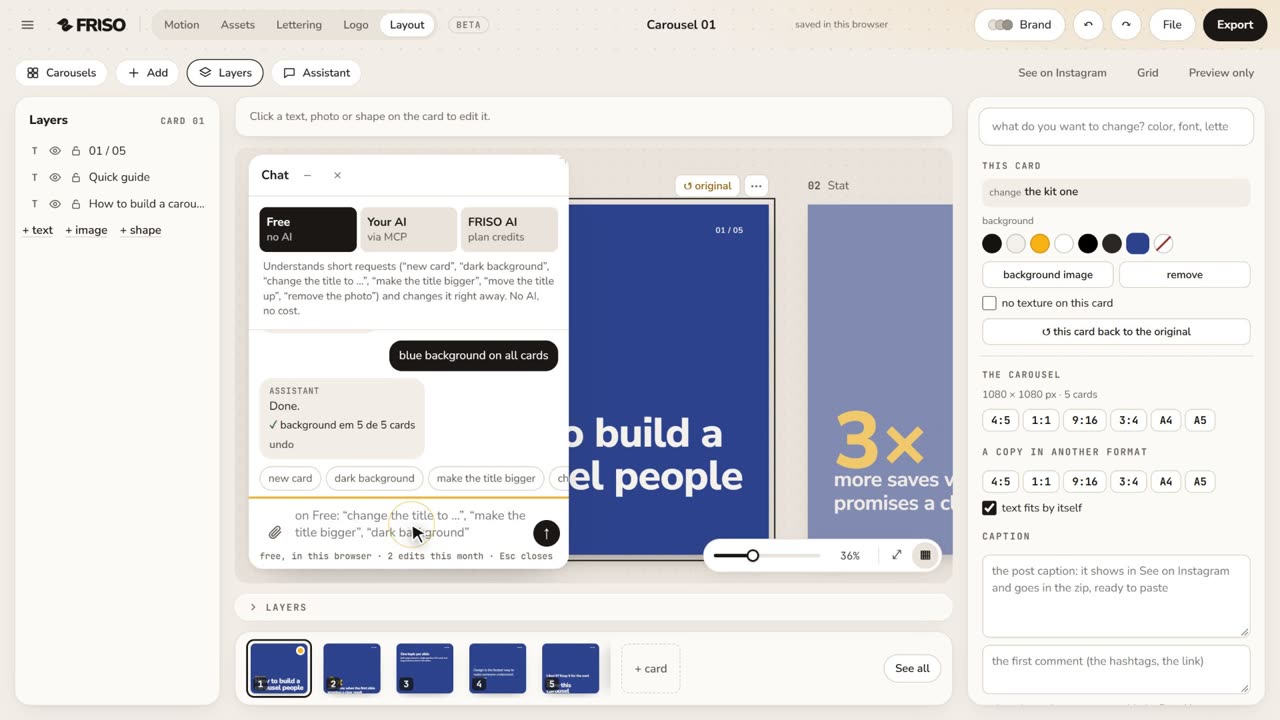 1:04Layout with the AssistantPick the format, ask the Assistant in your own words (bigger title, cream background on all cards), describe a new carousel and make a variation. No voice, with captions.
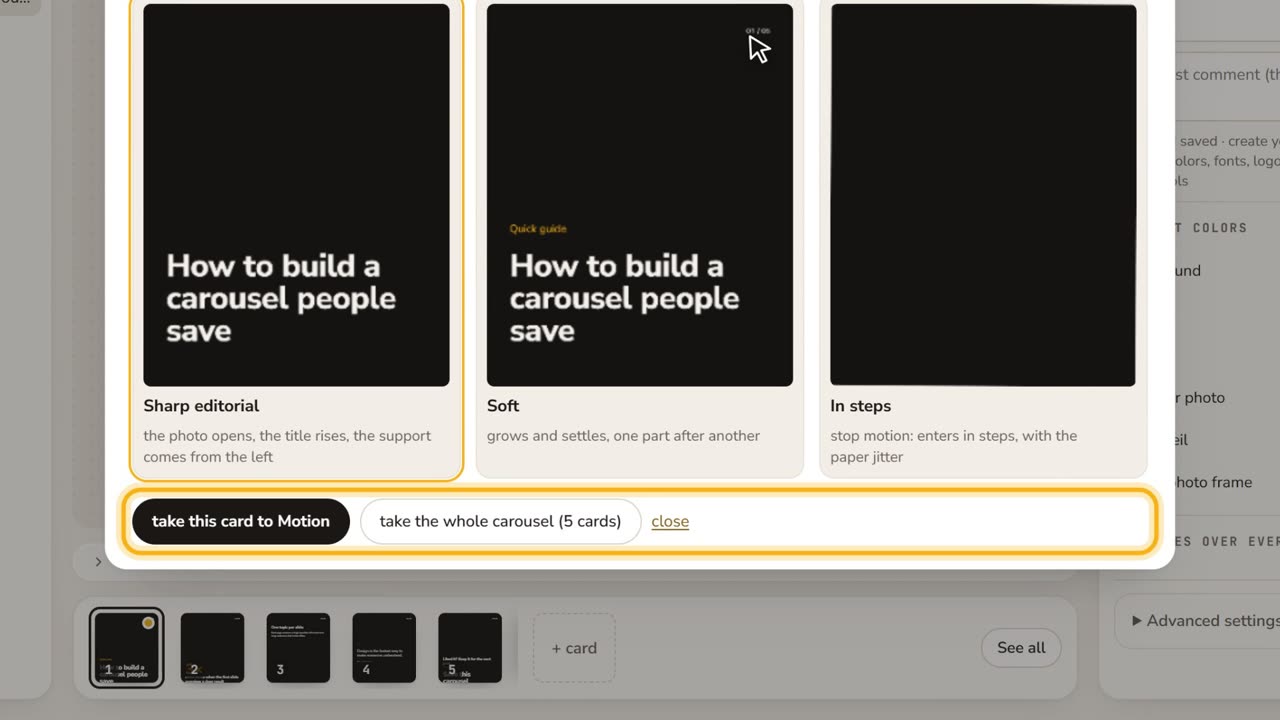 0:42Styles, brand and animationThe carousel styles, the kit colors, the Brand button, and Animate: three choreographies of your card, to Motion or to mp4. No voice, with captions.
Assets
Open Assets →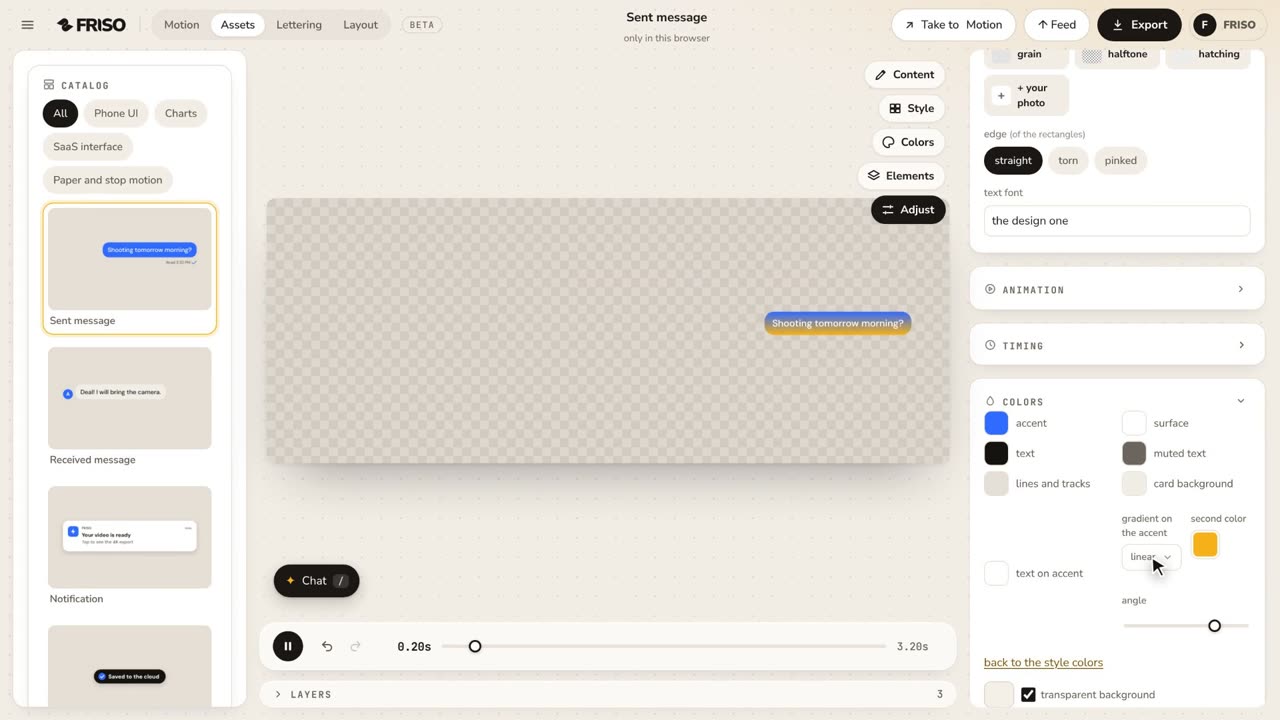 0:38Assets: gradients on the accentA gradient on the accent color of the piece, or on one element only, with the second color and the angle. It goes to After Effects as a Gradient Ramp. No voice, with captions.
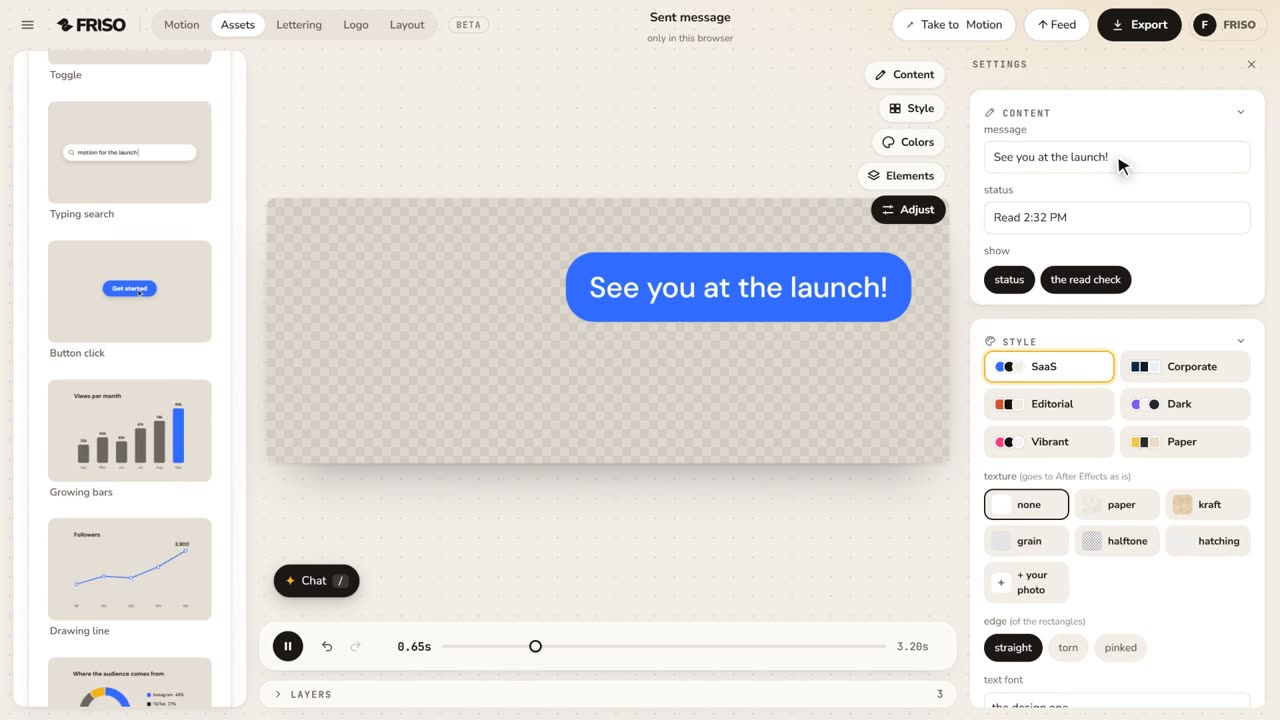 0:49Assets: animated UI and charts, ready to usePick a design from the catalog, write your own text, switch style and texture and export it as a video (with a transparent background on Pro).
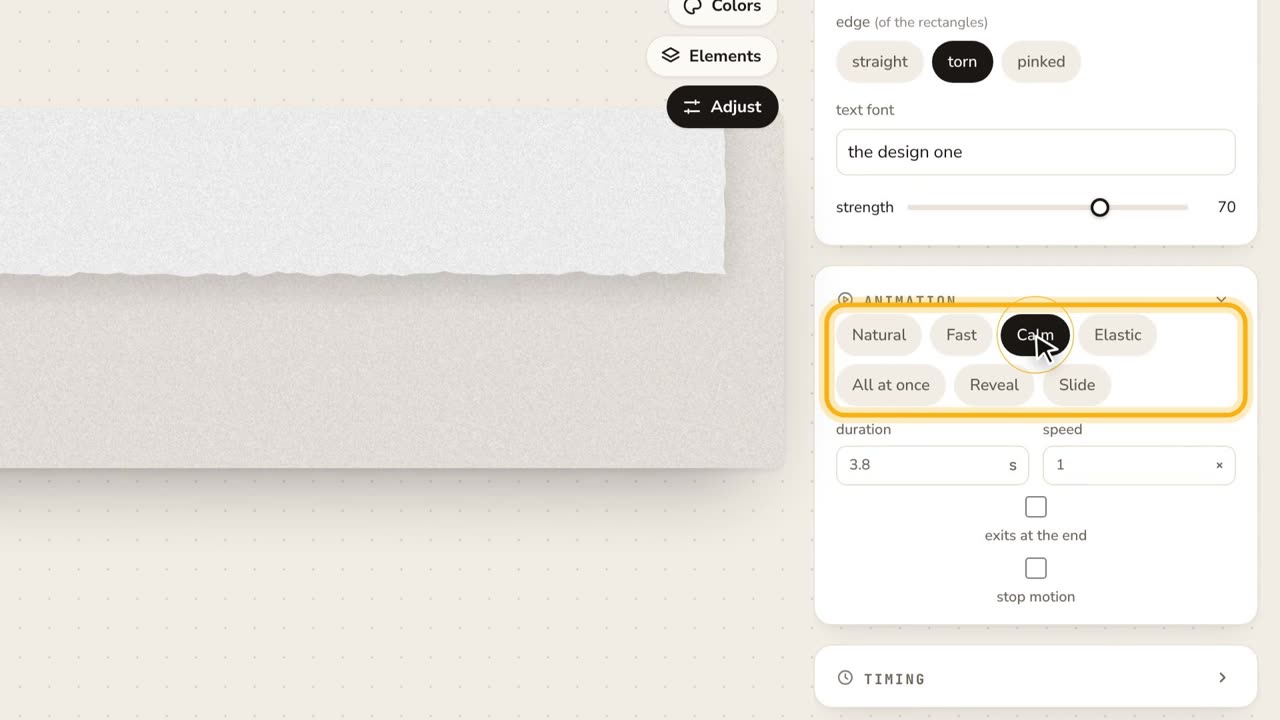 1:01Assets: adjust every detailContent, colors, a transparent background, texture and edges, animation presets, stop motion and each element on its own.
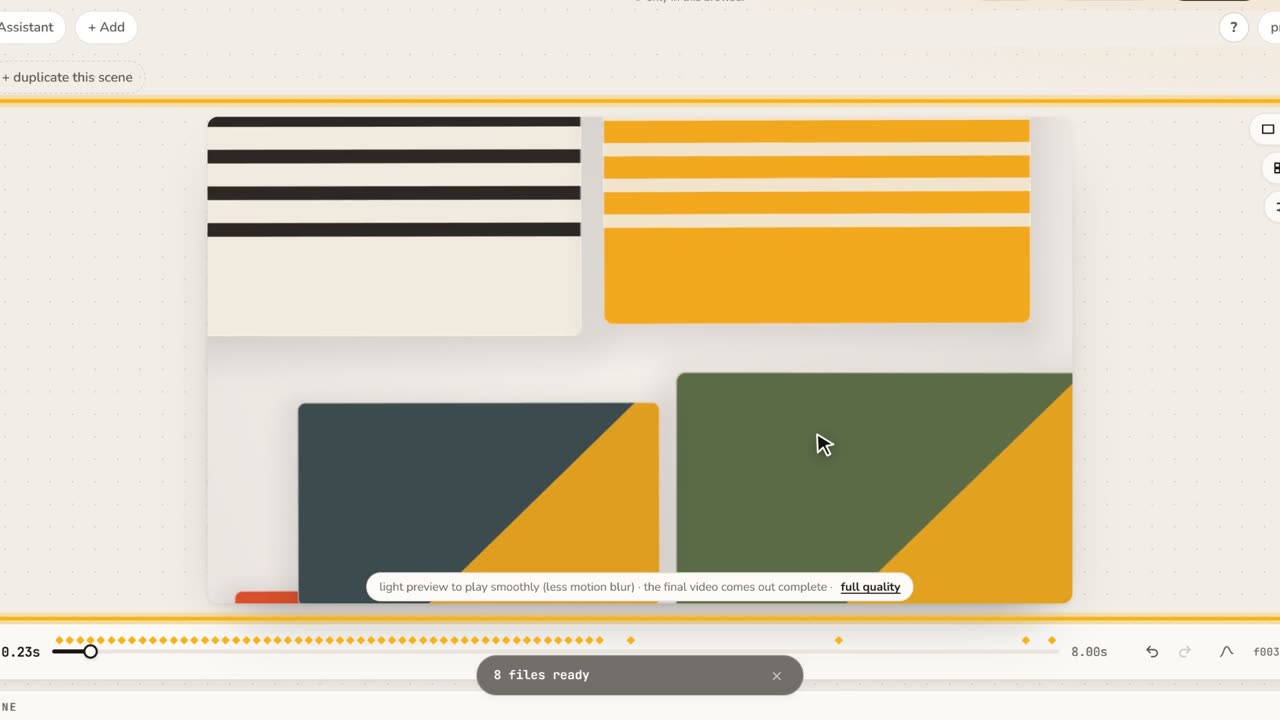 1:06Assets in Motion: a UI piece on top of your scenePick Search typing, write your text, choose a style and take it to Motion. It stays on top when you change the scene, and goes to After Effects as its own comp.
Lettering
Open Lettering →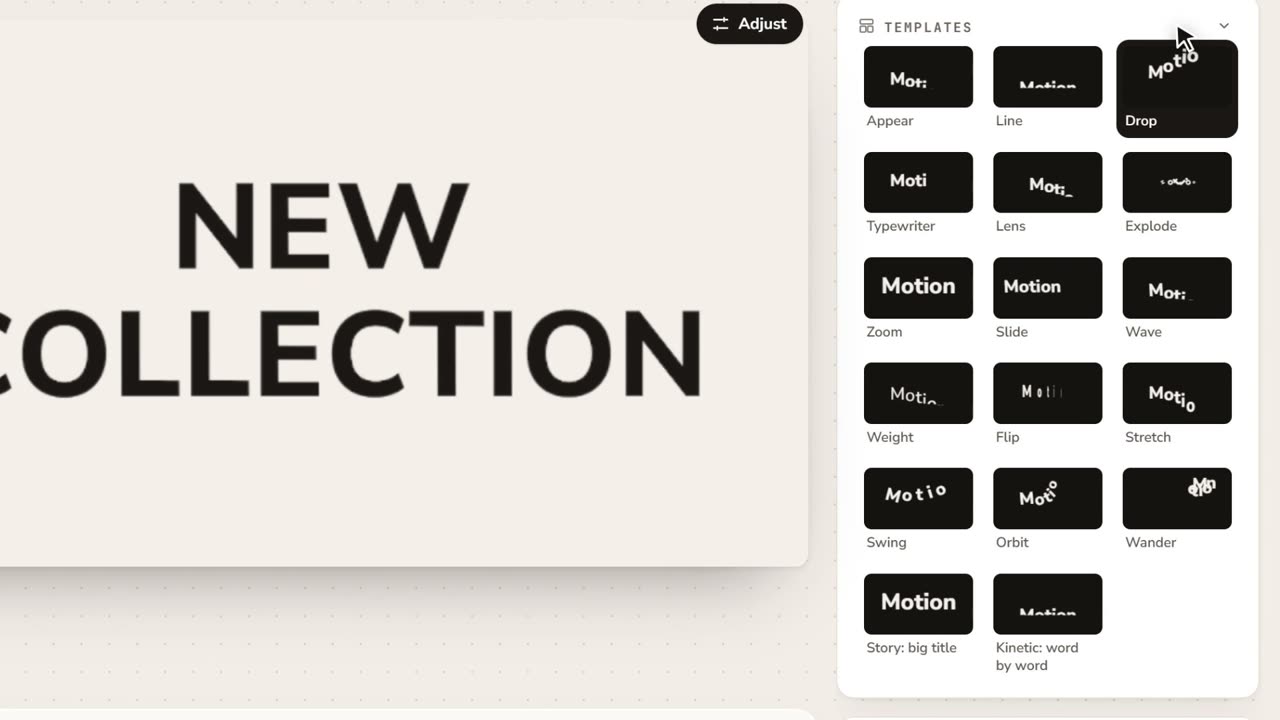 0:51Lettering: gradients and the way into MotionWrite your text, pick a template that plays in its thumbnail, paint it with a gradient that arrives in After Effects, and take it into a Motion scene. No voice, with captions.
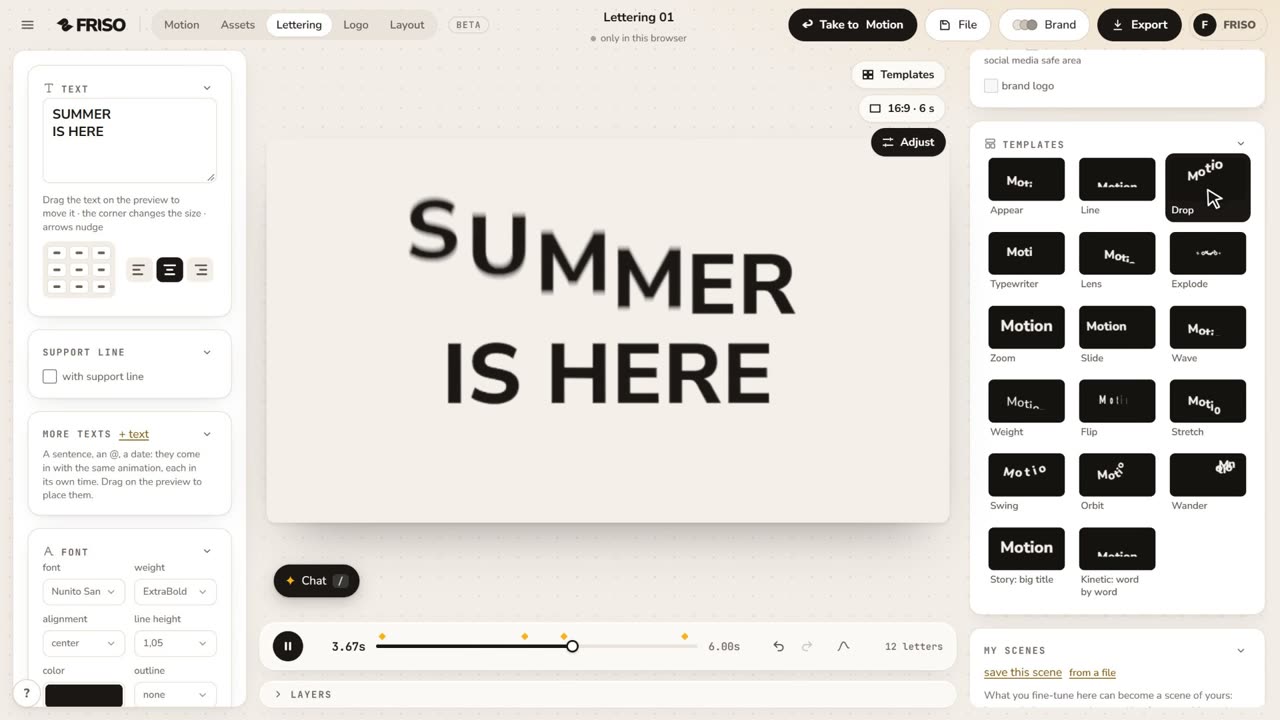 1:17How to make an animated title for Reels onlineWrite your title, pick an animation, choose font, color and format, and export the video. Nothing to install.