How to connect Claude or ChatGPT to your projects
Connect your own AI to FRISO through MCP and ask it to organize tasks and projects. It never deletes, and every change is signed.
Why it matters
Your AI knows how to turn a brief into a plan, but then you copy it all by hand into your tools. Connected to FRISO, it sees your projects and creates the tasks itself, signed and visible in the History.
Chapters
Transcript
Your AI
If you already use Claude or ChatGPT, you do not need to copy anything back and forth. Your AI can organize FRISO with you.
Connect
Open the menu and click Connect your AI. This is on Pro, and it spends no credits.
What it sees
Once connected, it sees your day, your projects, your boards and your brands.
The address
This is the address. Copy it. The guide shows where to paste it in each AI. In Claude, it goes in Connectors. In ChatGPT, in Apps and connectors.
Ask
Then ask the way you would ask a colleague: turn this brief into tasks for the summer campaign. The tasks appear in your week, on the right days, in the right project. FRISO tells you that your AI changed something.
The limits
Everything goes to the History, signed by it. You can always see who did what. It never deletes anything and never makes anything public. And what it did can be undone. Your AI takes care of organizing. The creative work stays with you.
Questions
Which AIs can connect to FRISO?
Any AI that accepts MCP, like Claude, ChatGPT, Cursor and VS Code. You paste the address and allow it in FRISO. It is on Pro and spends no credits.
Can the AI delete my work or publish something?
No. It never deletes anything and never makes anything public. What it changes is signed in the History.
What can I ask my AI to do in FRISO?
Turn a brief into tasks, plan the week, review a late project or comment on a piece of content.
More tutorials
All tutorials → 0:27Your free account and the FRISO toolsWhat you can do without an account, why the Workspace asks for one, and the Tools page with every part of FRISO.
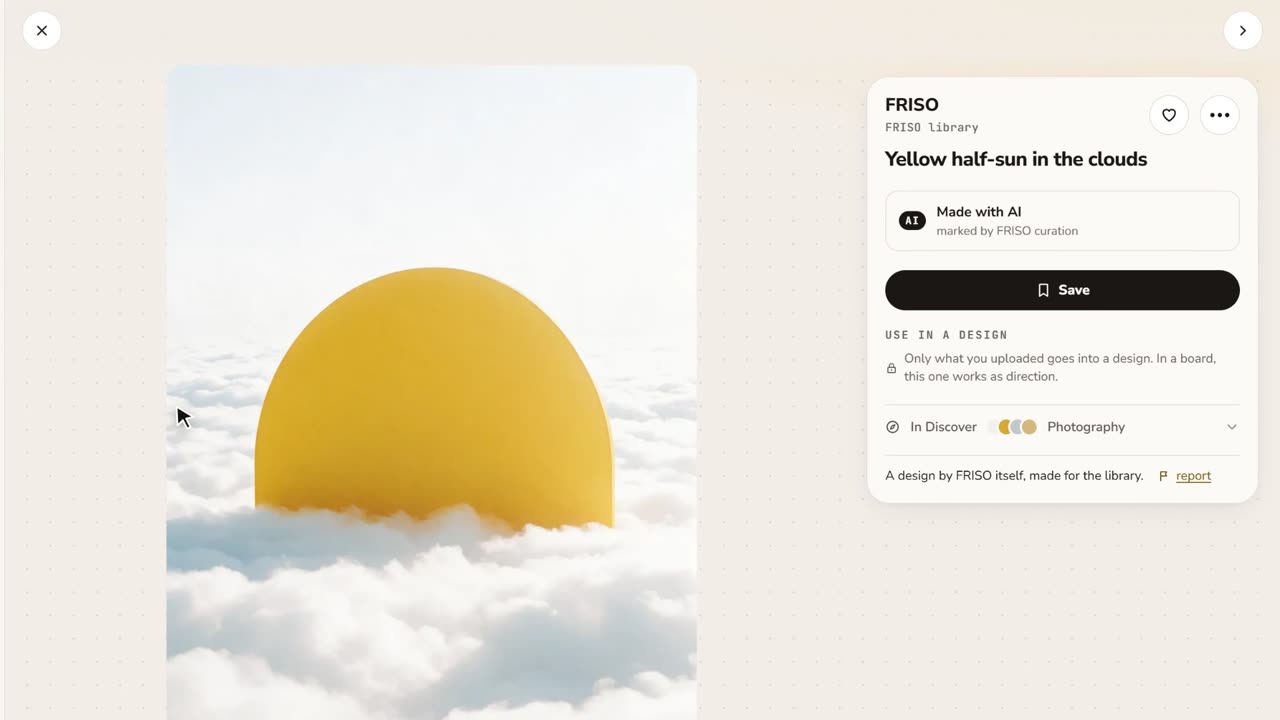 0:48References and boardsDiscover images with credit, search by color or subject, save with one click and keep them on as many boards as you like.
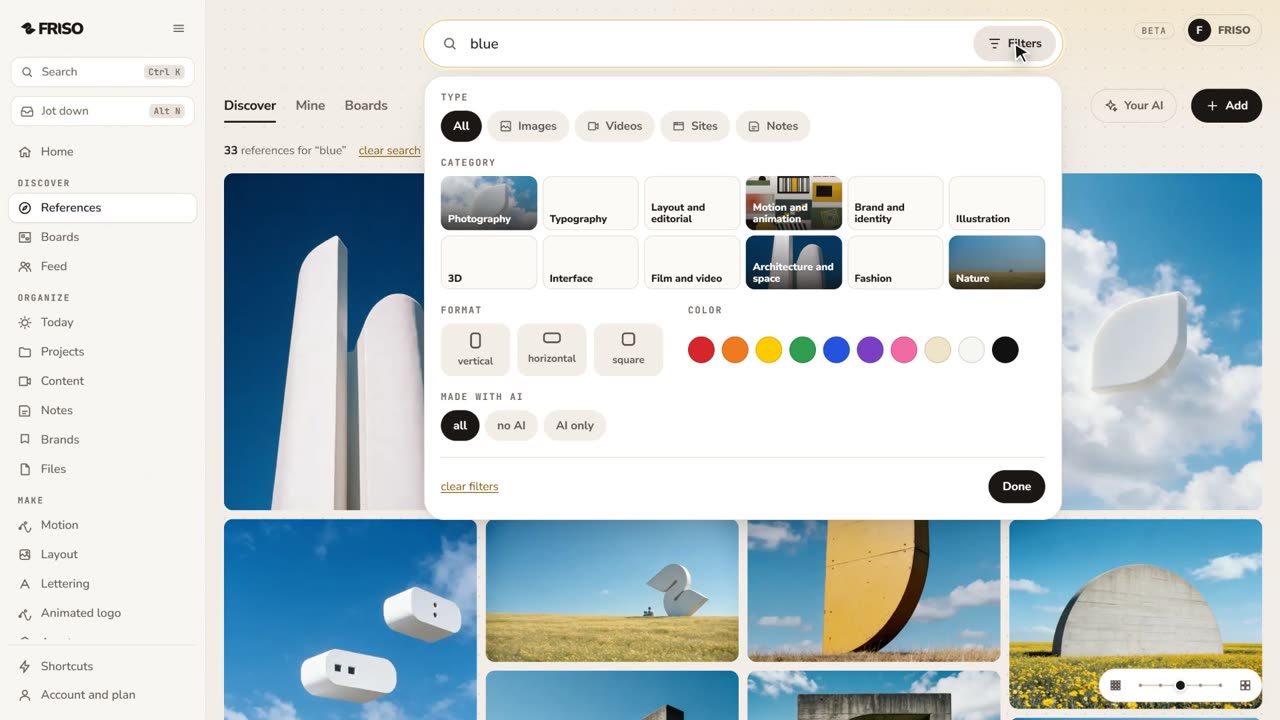 1:28How to find design references and keep them organizedReferences lost in tabs and screenshots? Search by subject or color, see the credit, find similar ones and save them to a board.