How to build a monthly social media content calendar
A month of posts is hard to see in a list. Plan it on a calendar: drag posts between days, filter by profile and repeat what comes back.
Why it matters
You plan the month in a spreadsheet, a date changes, and everything after it is wrong. With two profiles it gets worse. In FRISO the calendar is the plan: drag a post to another day and its tasks go along, see one profile at a time, and let post templates fill in what repeats.
Chapters
Transcript
The month
The Calendar shows your month of content at a glance, with every post on its day.
No date yet
Posts with no date wait here. Drag one onto a day and it is scheduled.
Move a date
Changed your mind? Drag the post to another day. Its tasks move along with it. To add a post on a specific day, use the plus on that day. The date is already filled in.
By profile
With more than one profile, on Pro, filter the calendar to see one at a time.
Board
The Board shows the same posts by stage. Move one forward with a click, or by dragging.
Profile by week
Profile by week puts the profiles in rows and the days in columns. Post templates leave an open slot on their day.
Late
Late gathers what passed its date. One click moves it to the next free day.
Filters
In the list, Filters groups everything by week, stage, profile, platform, format or theme.
Post templates
Post templates are for what repeats: the format, the day, the structure and the standard text. The Free plan has three. Open a template and turn on Repeat every week. The posts appear on their own, four weeks ahead. Back on the calendar, the whole month is planned, and any date is one drag away.
Questions
How do I plan a month of social media posts?
Start with the posts that repeat, as post templates. Then drag the loose ideas onto the empty days of the calendar.
Can I manage more than one profile on the same calendar?
Yes, with Pro. The calendar shows every profile together and filters to one with a click. The Free plan has one profile.
What happens to a post that missed its date?
It shows up under Late. From there, move it to the next free day, pick another day, mark it as published or send it back to the idea bank.
More tutorials
All tutorials →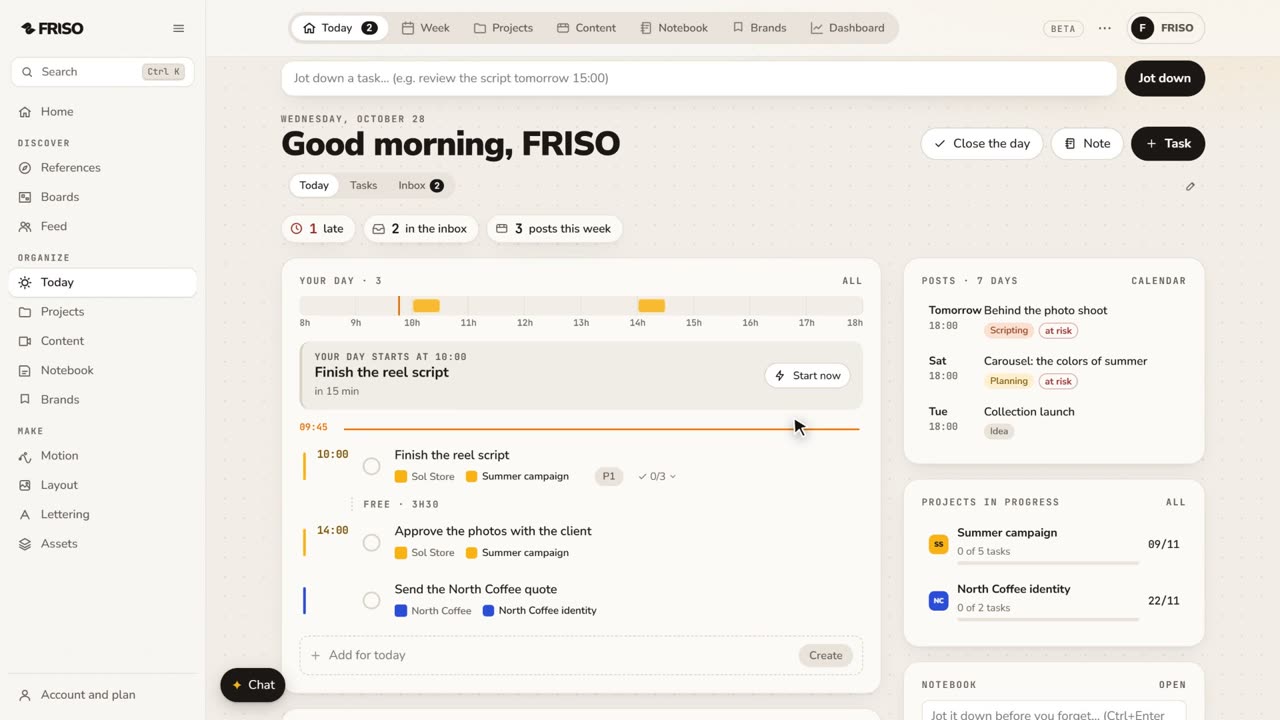 0:56Organize your work: day, week, projects and contentToday, Week, Projects, Content, Notes and Brands, one by one. Write tasks the way you say them, and let your own AI help organize.
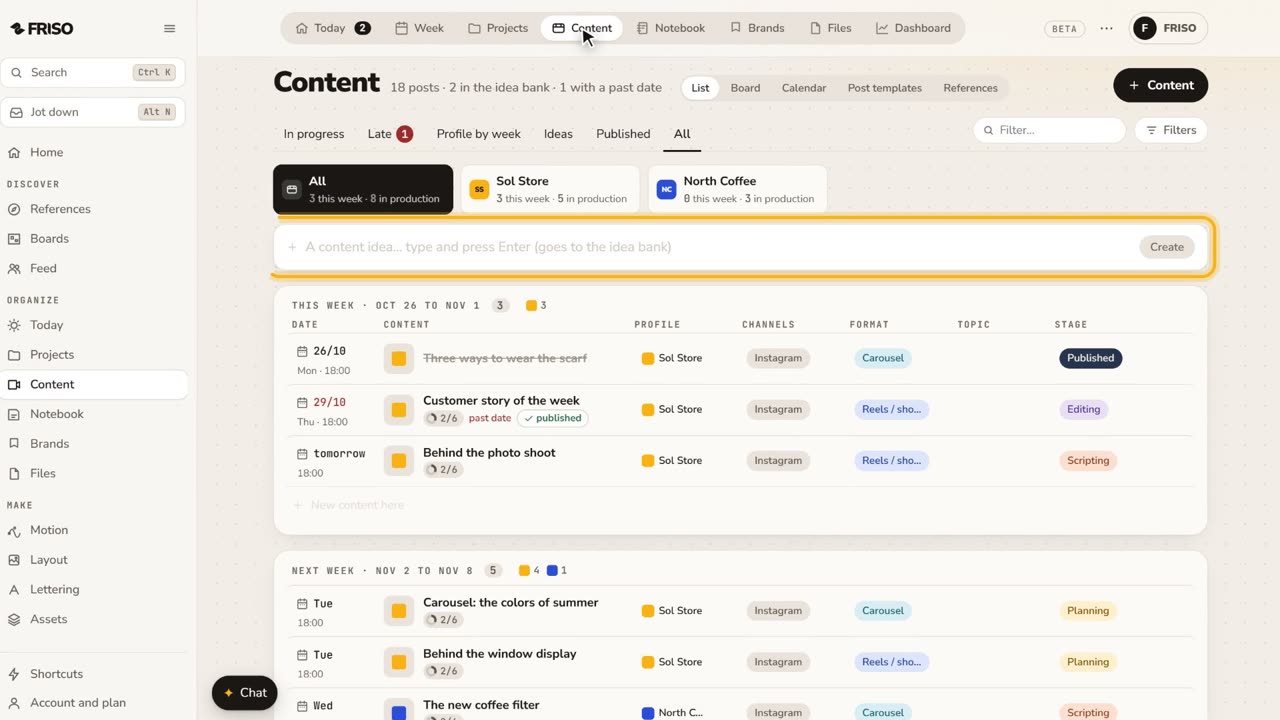 1:22How to organize social media content from idea to postIdeas get lost across notes and chats. Keep each post on one sheet, with its stage, date, caption and result, until it is published.
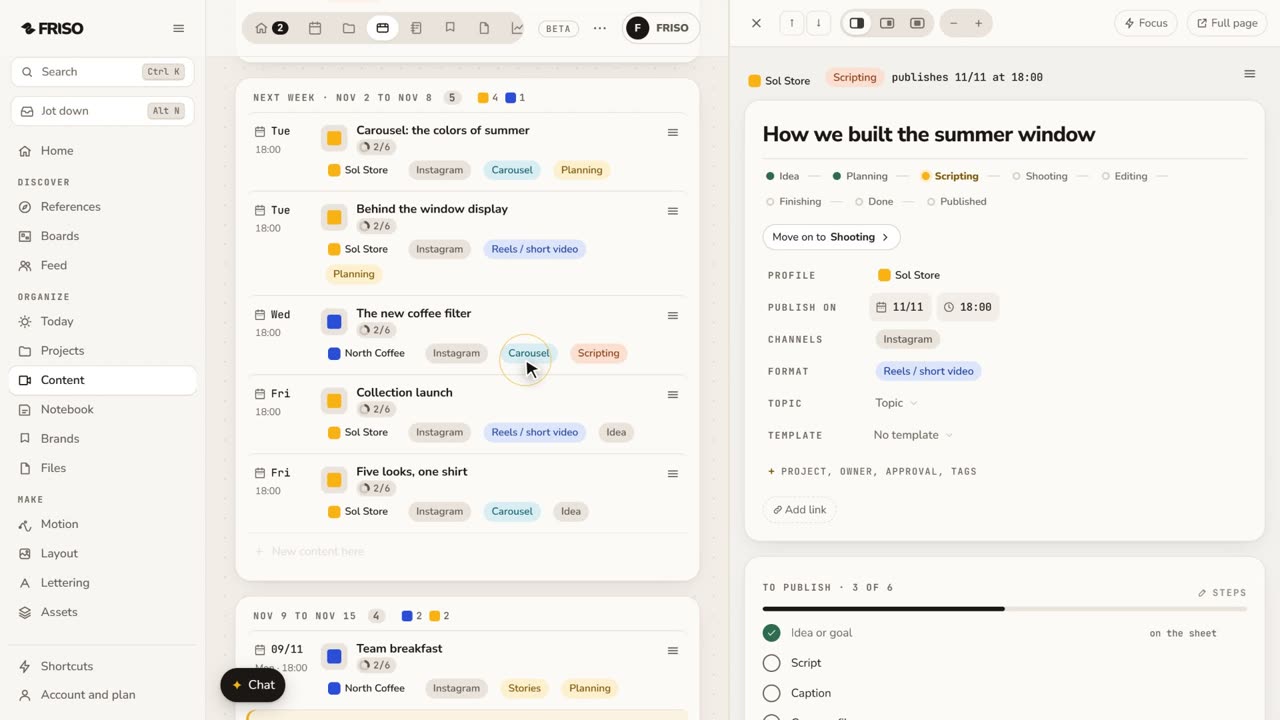 1:34How to write a script and storyboard for short videosA blank page stops the video before it starts. Write the script, use a method if you get stuck, then turn the scenes into a storyboard.