Your moodboard, from the start
Save references from the FRISO library to a private board, bring your own images and links, switch to Moodboard on the same button as Grid, pull the palette and link the board to the project. No voice, with captions.
Chapters
Transcript
Your moodboard
Every good job starts with references. Let us build your moodboard, from the start.
From the library
Start with the FRISO library: search for the subject of your job. Open an image and save it. Create the board of the job right there.
Private
Choose Private: the board is yours alone, nobody else sees it. Go to the next image and save it to the same board.
The board
Here is the board. The padlock says it: private, only you see it.
Your own
Bring your own too: drop images from your computer on the board. Or paste a link. It comes in with the credit of whoever made it.
Moodboard
On the same button as Grid, switch to Moodboard: the references loose, for thinking. Arrange it your way. When it gets messy, tidy everything up in one click.
Palette
Palette pulls the colors from your references. Keep it on the board.
Project
Link the board to the project, and the references become part of the job. Your turn: start the moodboard of your next job.
More tutorials
All tutorials →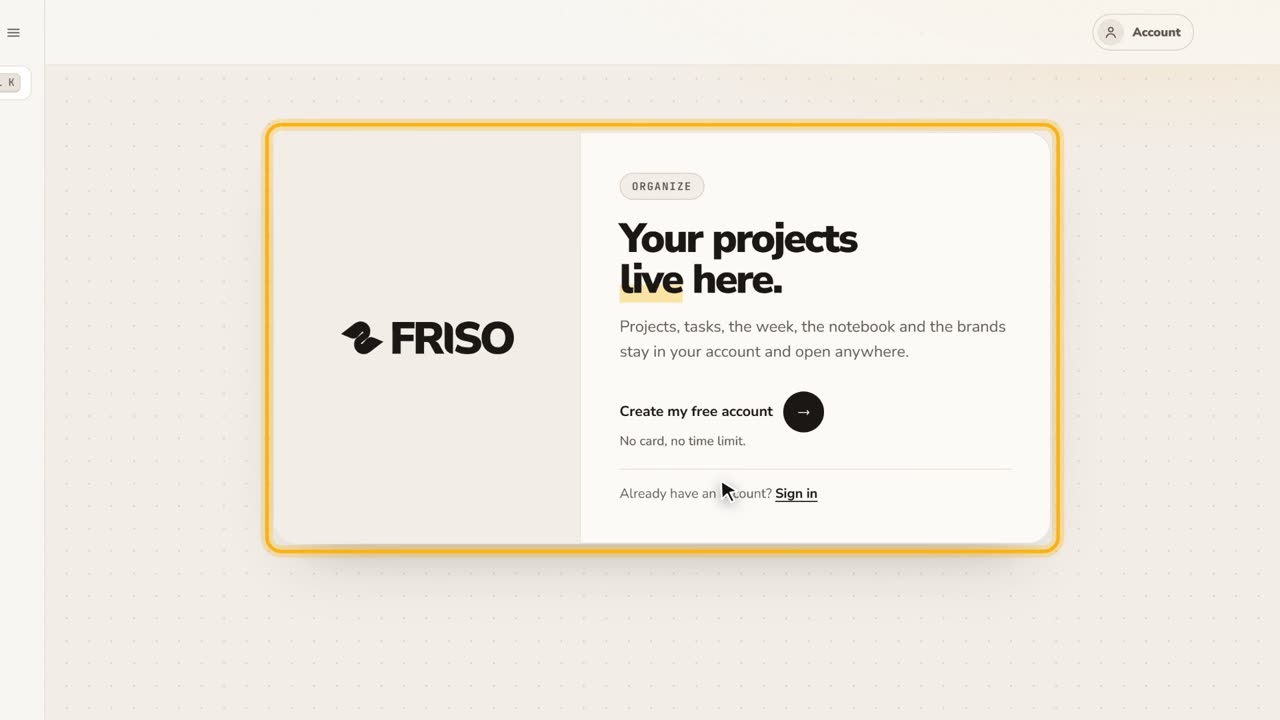 0:27Your free account and the FRISO toolsWhat you can do without an account, why the Workspace asks for one, and the Tools page with every part of FRISO.
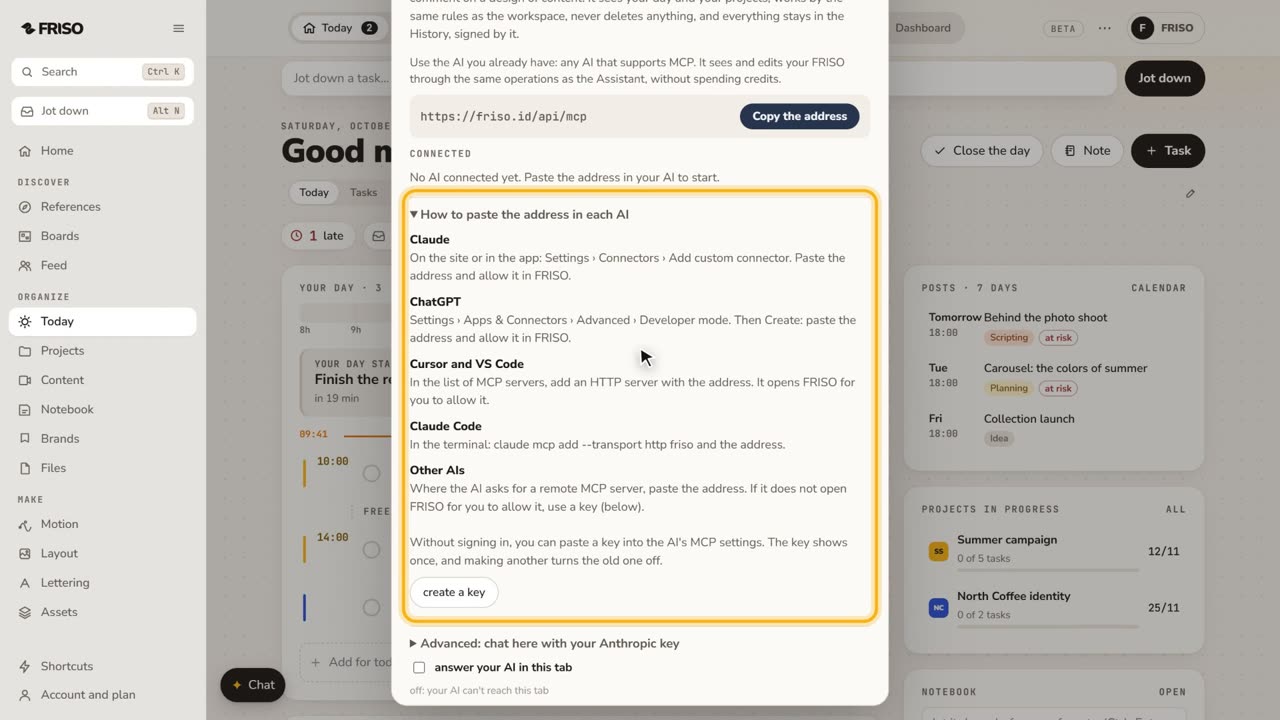 1:07How to connect Claude or ChatGPT to your projectsConnect your own AI to FRISO through MCP and ask it to organize tasks and projects. It never deletes, and every change is signed.
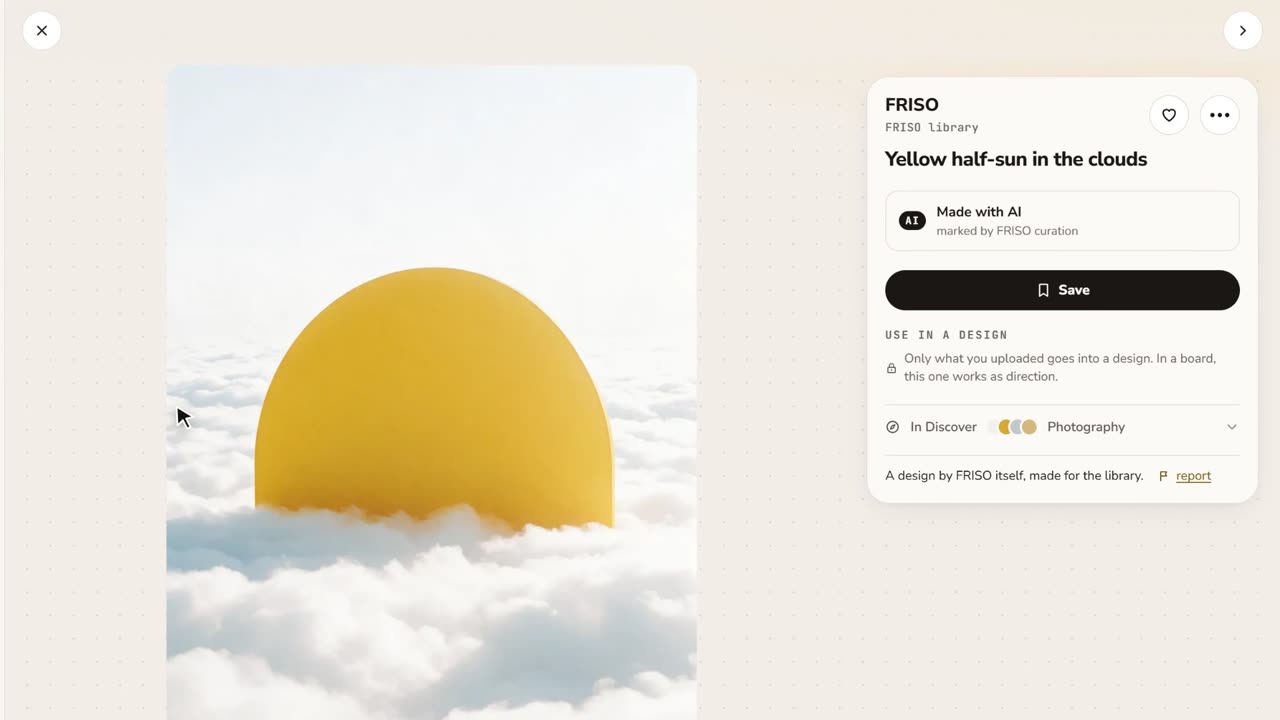 0:48References and boardsDiscover images with credit, search by color or subject, save with one click and keep them on as many boards as you like.