How to request files from a client with one link
Client files scattered across WhatsApp and email? Send one link: they upload with no account, and it all lands in your folder.
Why it matters
The logo comes on WhatsApp, the photos by email, and the rest never arrives. Then you dig through chats to start the job. With FRISO, you send one link: the client sees what you asked for, uploads without an account, and everything lands in the folder you chose.
Chapters
Transcript
Request files
A logo on WhatsApp, photos by email, and nothing is where it should be. Instead, send a link. Choose the folder where everything will land. Write what you need, and how long the link lasts. The link is ready. Copy it, or send it on WhatsApp.
What the client sees
Whoever gets the link sees what you asked for, and sends the files without an account. They type a name and drop the files. Each one shows when it is done. And you get a notice as soon as something arrives.
In your folder
Everything lands in the folder you chose, marked as coming from the client. It counts toward your space, and requesting files is part of every plan.
Your links
In Shared by me you see your links and what has arrived. Turn a link off whenever you want. No account for the client, and no file lost in a chat.
Questions
Does the client need an account to send me files?
No. They open the link, type their name and drop the files.
Where do the files go?
To a From the client folder inside the folder you chose, and they count toward your space. You get a notice when something arrives.
Can I turn the link off?
Yes. Every request link has an expiry you choose, and you can turn it off at any time in Shared by me or File requests.
More tutorials
All tutorials →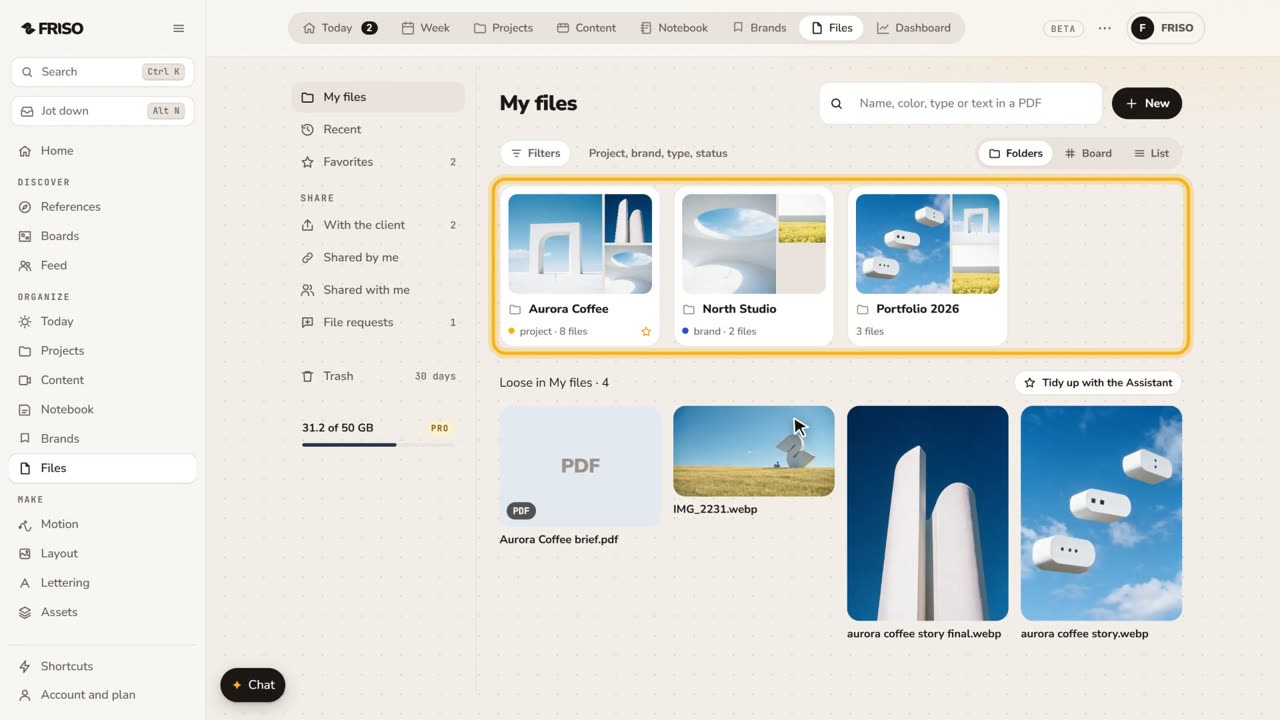 1:31How to store and organize creative files in one placeYour work scattered across drives and chats? FRISO Files is your cloud: folders linked to projects, search and private folders.
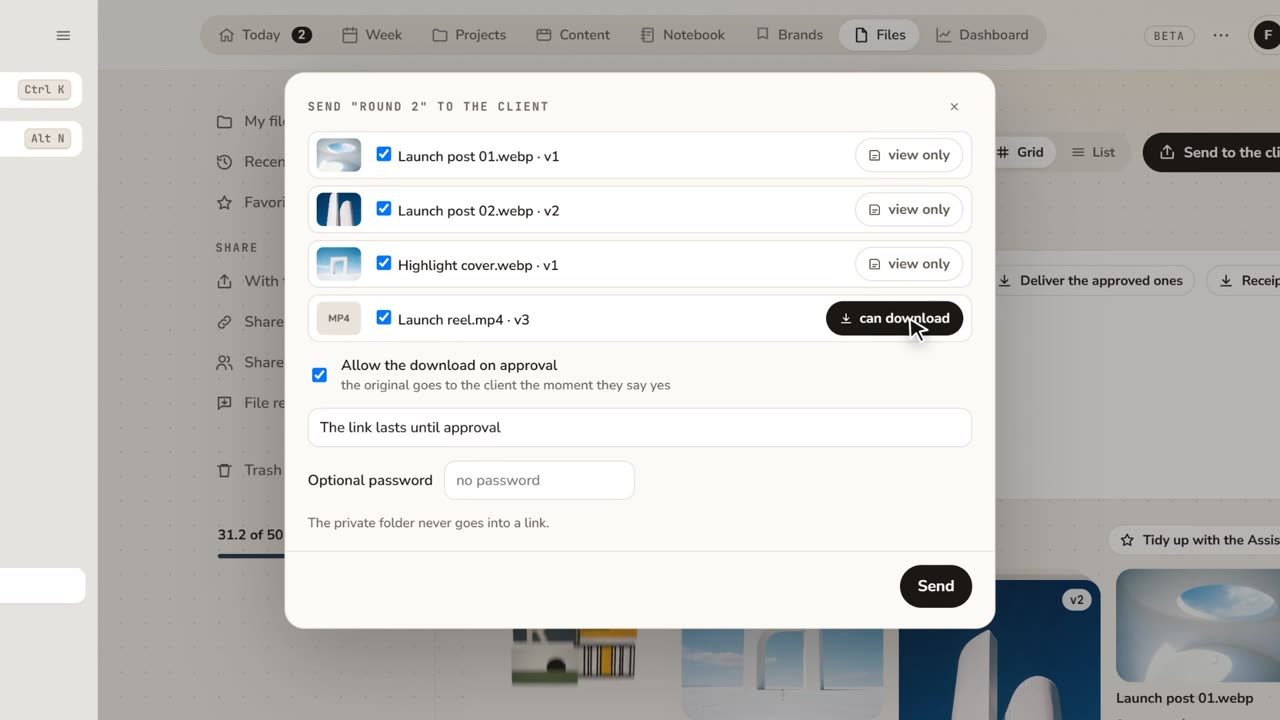 1:48How to share files with clients for approvalFeedback lost in email threads? Send a folder as a link: the client comments on the exact spot and approves, with no account.
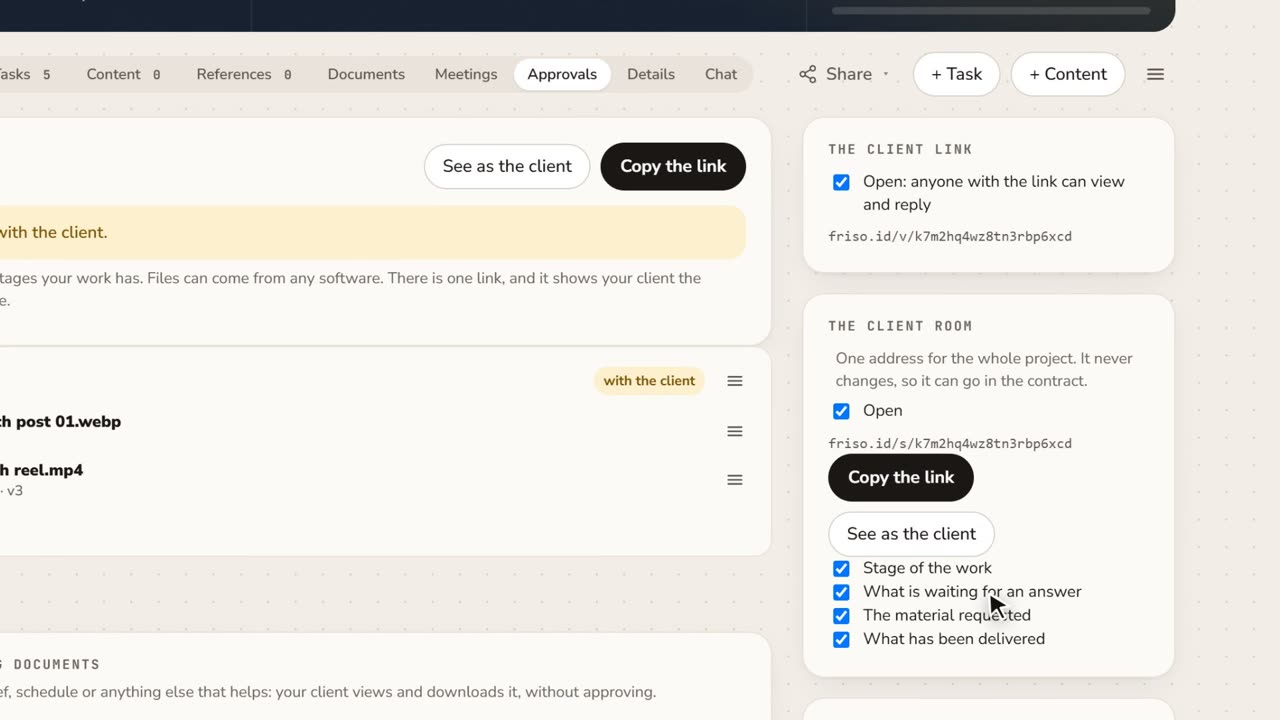 1:15A client portal for each project, with approval receiptsClient asking where things stand? Give them one address for the whole project, and keep a receipt of every approval as a PDF.